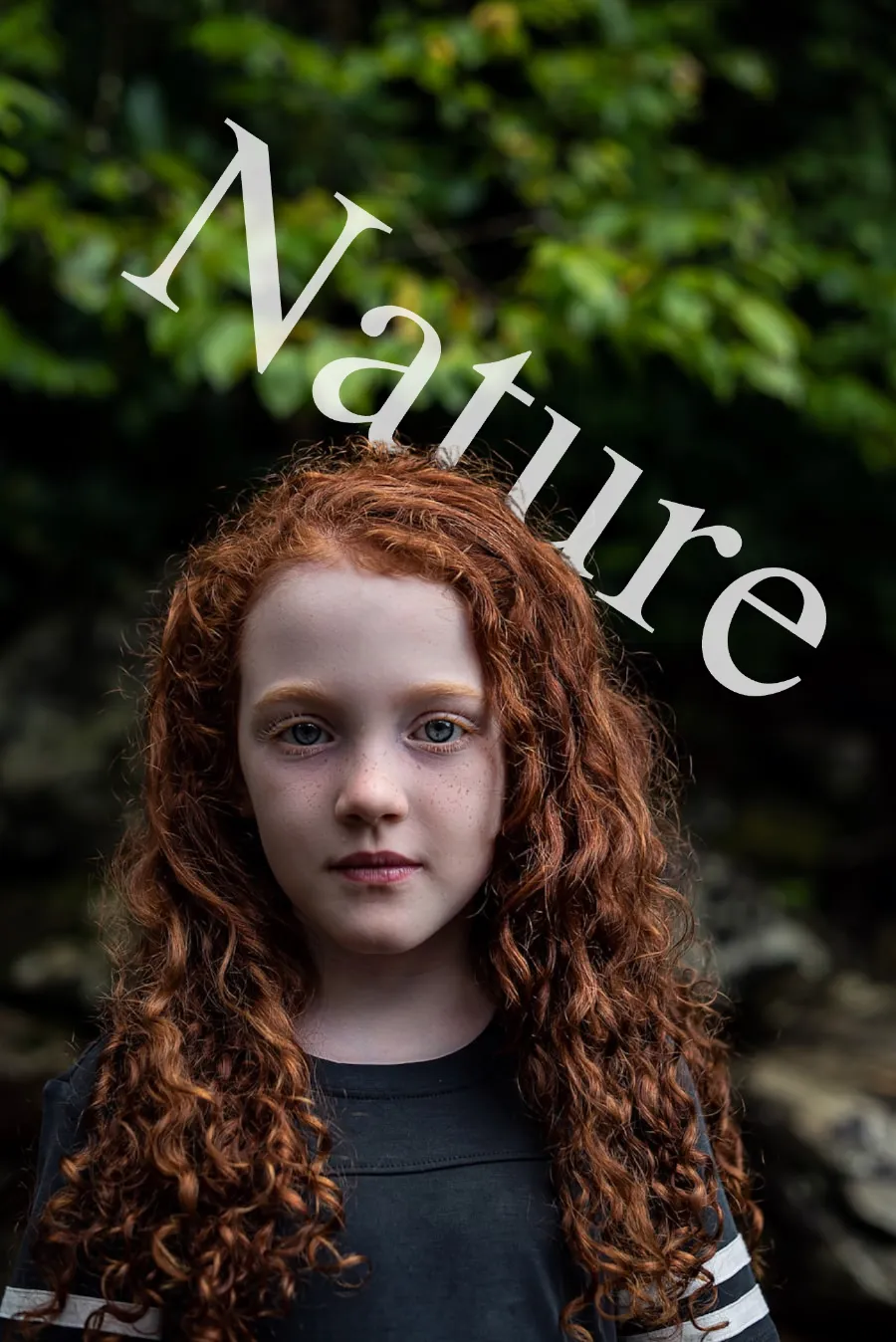
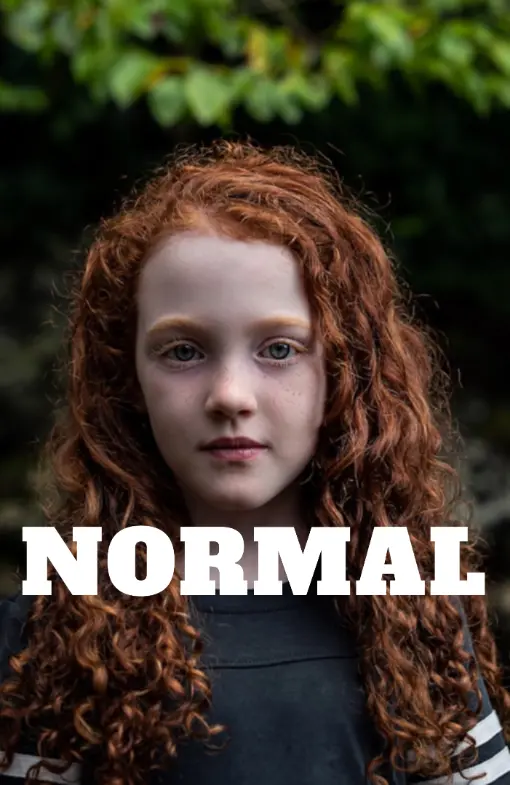
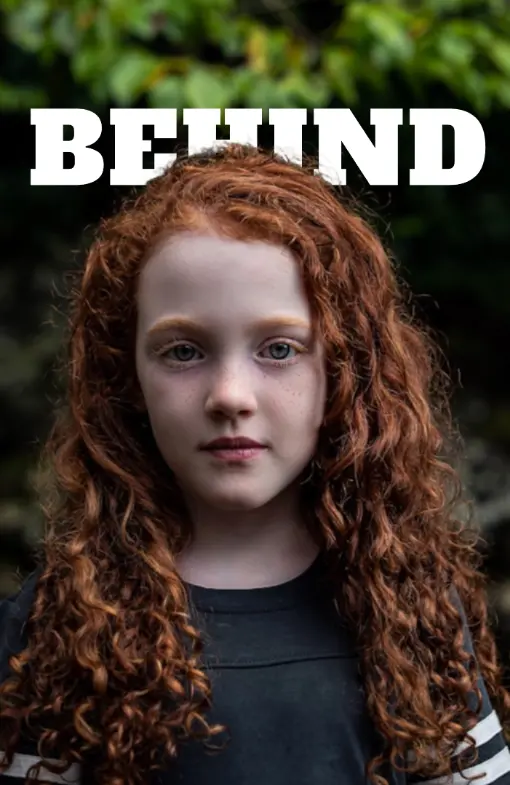
text behind image on iphone — free browser tool

Add text behind photos in safari — no app download needed

Upload an Image

Drag and drop or click to select

Maximum file size: 50MB

Or upload from URL
Or try with a sample image:

Sample portrait photo for text behind image effect Sample woman photo to try text behind image tool Sample outdoor portrait for text overlay design Sample fashion portrait for text behind image editor

Showcase

Make your photos look like cool posters

Image format
Please wait... First run may take 30–60s while the AI model loads. Next time it'll be instant.
Processing image 😊.....
TEXT LAYERS
Upload an image to start
Add or select a text layer
to edit its properties
BLEND MODE
EFFECTS
Subject Image
Background Image
Both Images
textbehindimg.com - Free text behind image editor | Product Hunt Buy Me A Chai

How to Add Text Behind an Image on iPhone — Step by Step

1

Open the Editor in Safari on iPhone

Go to TextBehindImg.com in Safari on your iPhone. No App Store download needed — the editor loads directly in the browser. Tap the upload area and choose a photo from your camera roll. The AI detects the subject in seconds.

2

Add Text and Pick a Style

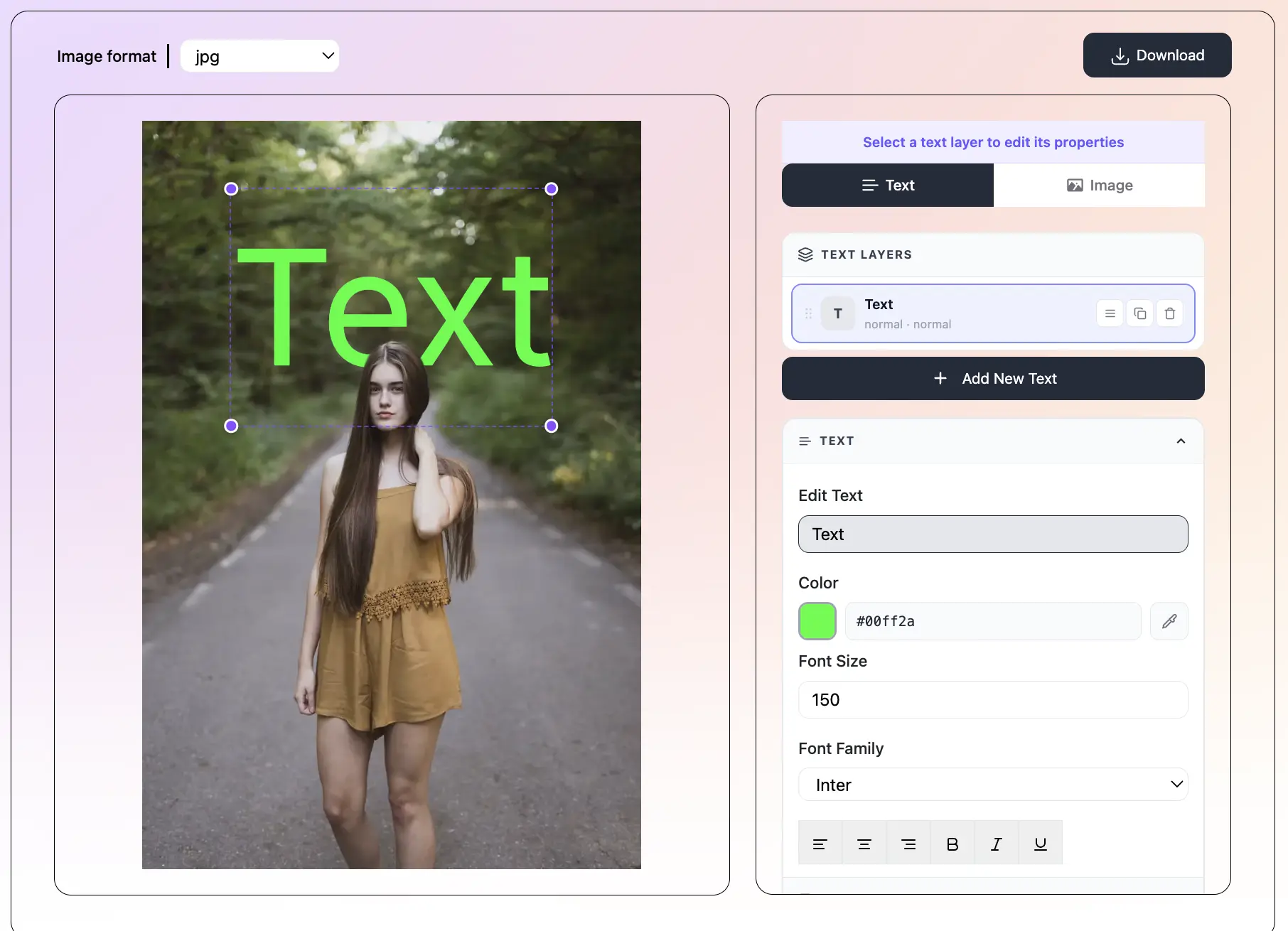
Tap 'Add Text' to create a new Text Layer. Type your text, then tap a font from the 150+ available options. Choose a color and size. Tap any preset to apply a complete style in one tap — Neon, Vintage, Fire, and 33 more are available.

3

Set Text to Behind Mode

Tap the Overlay panel and switch to Behind mode. Your text now sits behind the subject in the photo. Drag the text with your finger to reposition it. Tap blend mode options or apply 3D depth and perspective controls as needed.

4

Adjust Filters and Save to Photos

Use the filter tabs to tweak the image brightness and contrast on iPhone. When ready, tap Download — the finished image saves directly to your iPhone camera roll with no watermark, no account prompt, and no redirect.

What is TextBehindImg?

TextBehindImg works on iPhone with no app to download. Open the editor in Safari, upload a photo straight from your camera roll, and the AI automatically detects the subject so you can place text behind it in seconds. Design entirely in your browser, then save the finished image directly to your iPhone photos — free, with no signup and no watermark.

Text behind image example — person with text placed behind them
No App Download — Opens in Safari Instantly - text behind image feature

No App Download — Opens in Safari Instantly

Skip the App Store. Open TextBehindImg in Safari on your iPhone and start designing immediately. No installation, no account creation, and no storage used on your device beyond the finished image you download.

AI Subject Detection Works on iPhone - text behind image feature

AI Subject Detection Works on iPhone

The AI runs entirely in your browser — including on iPhone. Upload any photo from your camera roll and the subject is detected automatically within seconds. Switch to Behind mode and the text sits behind the person or object in the photo.

Touch-Friendly Controls for iPhone - text behind image feature

Touch-Friendly Controls for iPhone

Every control in the editor is designed to work with a tap. Drag text layers to reposition them with your finger. Tap to select, style, and switch modes. The layout adjusts to your iPhone screen size so nothing is cramped or hard to reach.

36 Presets — One-Tap Styling on iPhone - text behind image feature

36 Presets — One-Tap Styling on iPhone

Apply a complete text style with a single tap — 36 presets include Neon, Vintage, Fire, Chrome, Matrix, and more. No need to manually set the font, color, and spacing separately. Pick a preset and the design is ready to refine.

Upload from Camera Roll, Download to Photos - text behind image feature

Upload from Camera Roll, Download to Photos

Tap to upload directly from your iPhone camera roll — including Live Photos (exported as JPEG). When you are done designing, tap Download and the image saves straight to your iPhone photos with no watermark.

Free — No Signup, No Watermark on iPhone - text behind image feature

Free — No Signup, No Watermark on iPhone

Every feature is free to use on iPhone with no account required. No watermarks are added to your downloads. Your camera roll photos never leave your device — all processing runs locally in Safari.

Frequently asked questions

Yes. The full editor works in Safari on iPhone — including AI subject detection, all text controls, presets, blend modes, and the download function. No app is required.

No. Open the editor in Safari on your iPhone and it works immediately. Nothing is installed on your device, and no storage is used beyond the image you download at the end.

Yes. Tap the upload area and your iPhone prompts you to choose a photo from your camera roll or files. Live Photos are supported and exported as JPEG.

When you tap Download, the image saves directly to your iPhone camera roll (Photos app). No account or cloud service is involved — the file goes straight to your device.

Completely free. No subscription, no account, no in-app purchase, no watermarks. Every feature available on desktop is also available in Safari on iPhone.

Yes. The editor works in Safari on iPad in the same way as iPhone. The larger screen gives you more space to work with text positioning and the typography controls.

Yes. The AI runs in the browser using the same code regardless of device. Subject detection quality depends on the photo content — clear subjects with good contrast from the background give the best results on any device.

Yes. JPEG and HEIC photos from your iPhone camera work when uploaded through the browser. HEIC files are typically converted to JPEG by Safari automatically during upload.

Recent Posts