add emoji on face free online emoji editor

Place any emoji on any face in your photo

Upload Your Photo

Drag and drop or click to select

Maximum file size: 50MB

Or upload from URL
Or try with a sample image

Sample portrait for add emoji on face Sample woman photo for add emoji on face Sample outdoor portrait for add emoji on face Sample fashion portrait for add emoji on face

Add Emoji on Face

Cover any face with any emoji drag, resize, done

  • 500+ emojis in 9 categories
  • Upload your own sticker or logo
  • Drag, resize, and rotate every emoji
  • Add unlimited emojis for group photos
  • Download in PNG, JPG, or WebP no watermark
Base photo

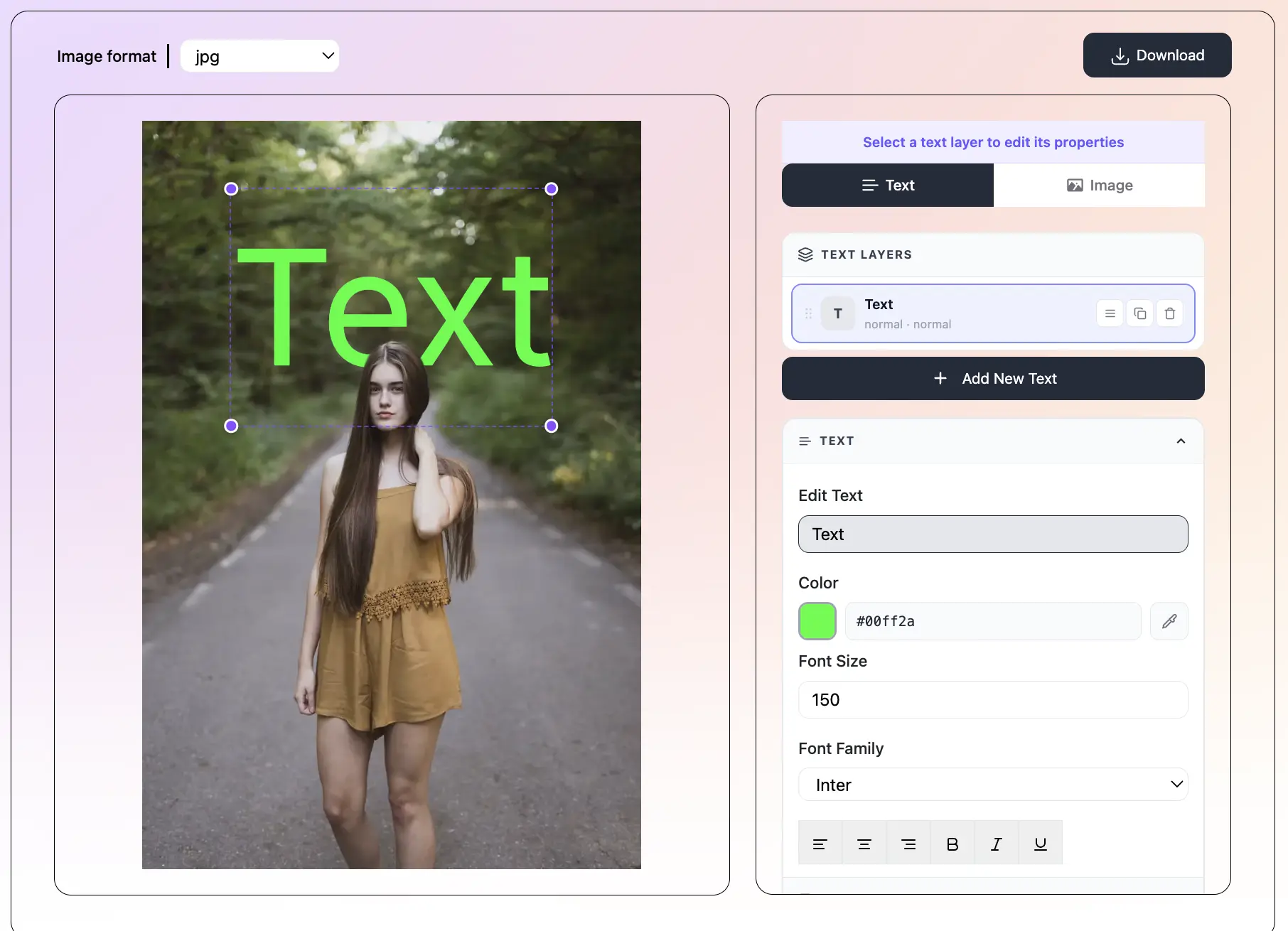
Tip: click an emoji to add it, then drag it onto a face and pinch a corner to resize.
DOWNLOAD

How to Add an Emoji on a Face Step by Step

1

Upload Your Photo

Drag and drop a JPEG, PNG, or WebP photo, or click to browse. Your photo opens right in the editor. Nothing is uploaded to a server everything stays on your device.

2

Pick an Emoji

Open the Emojis tab. Browse by category or scroll through the full list. Click any emoji and it appears in the center of your photo. Want a custom sticker? Use the Upload tab to add your own PNG or JPG.

3

Place It on the Face

Drag the emoji to the face you want to cover or decorate. Grab a corner to resize. Use the top handle to rotate. Add more emojis for group photos each one gets its own layer.

4

Download Your Photo

Click Download when you are happy with the result. Pick PNG, JPG, or WebP. The file saves to your device with no watermark, ready for social media or messaging.

What is TextBehindImg?

Add any emoji to any face in a photo for free, right in your browser. Upload your photo, pick from over 500 emojis, and drop them onto the faces. You can drag, resize, and rotate every emoji to make it look exactly the way you want. You can also upload your own stickers or logos. Great for hiding faces, having fun, making memes, or protecting privacy on social media. No signup, no watermark, and your photos never leave your device.

Text behind image example  person with text placed behind them
500+ Emojis in One Place - text behind image feature

500+ Emojis in One Place

Browse the full emoji library by category smileys, animals, food, hearts, hands, flags, and more. Just click any emoji and it drops onto your photo, ready to move where you want.

Drag, Resize, and Rotate - text behind image feature

Drag, Resize, and Rotate

Drag any emoji to any face on your photo. Grab a corner to make it bigger or smaller. Rotate it with the top handle to match the head tilt. Perfect fit every time.

Upload Your Own Stickers - text behind image feature

Upload Your Own Stickers

Have your own emoji, logo, or sticker? Upload it as a PNG or JPG and use it just like the built-in emojis. Add as many custom images as you want.

Add Multiple Emojis on One Photo - text behind image feature

Add Multiple Emojis on One Photo

Cover every face in a group photo with a different emoji. Each one is its own layer that you can move, resize, or delete on its own. There is no limit to how many emojis you can add.

100% Free and Private - text behind image feature

100% Free and Private

No signup, no subscription, and no watermarks on your downloads. All editing happens right inside your browser, so your photos never get uploaded to a server.

Download in PNG, JPG, or WebP - text behind image feature

Download in PNG, JPG, or WebP

Save your final image in the format you need. PNG for the best quality, JPG for the smallest file, WebP for a good mix. The file saves straight to your device.

Frequently asked questions

Upload your photo, open the Emojis tab, click the emoji you want, then drag it onto the face. You can resize and rotate it to fit the head. No design skills needed.

There is no limit. You can add as many emojis as you need perfect for group photos where you want to cover every face with a different one.

The tool comes with over 500 emojis grouped into 9 categories: smileys, people, animals, food, activities, travel, objects, symbols, and flags. Every popular emoji is there.

Yes. Use the Upload tab to add any PNG or JPG image as a custom sticker. Great for adding brand logos, watermarks, or your own hand-drawn emojis.

Yes covering a face with an emoji is one of the most common ways to protect privacy on social media. Pick a fun or generic emoji, drag it over the face, and download. Simple and effective.

It is completely free. No signup, no subscription, and no watermarks on the images you download.

No. All editing runs inside your browser. Your photos never leave your device.

Yes. The editor works in any modern browser on iPhone, Android, tablets, and computers. Upload from your camera roll, place emojis on the touchscreen, and save to your device.

Why Add Emoji on a Face?

Putting an emoji on a face is one of the most useful photo tricks in the smartphone age. People do it for lots of reasons to hide a face for privacy, to make a serious photo funny, to build memes, to cover the face of someone who did not agree to be in the photo, or just to add a playful touch to a group picture.

The trick used to need Photoshop or a dedicated mobile app. Our tool lets you do it in the browser in under a minute. No download, no signup, no watermark. Just pick an emoji, drag it onto the face, and save.

Popular Ways to Use Emoji on Faces

People use the emoji-on-face effect for many everyday and creative reasons:

  • Hide faces of friends or family who do not want to appear in a social media post
  • Cover the face of a stranger who happened to be in the background of your photo
  • Turn a serious group photo into a fun meme with different emojis on each face
  • Add a smiley face over the mouth for a playful, cartoon-style edit
  • Cover your face in a selfie you want to share without revealing your identity
  • Protect the privacy of children in photos before sharing them online
  • Make a photo more shareable by adding heart eyes, sparkles, or fire emojis
  • Build content for TikTok, Reels, and Stories that stands out in the feed

Which Emojis Work Best on Faces?

Different emojis fit different photos. Here are the ones most people reach for:

  • πŸ˜€ Smileys the go-to choice when you want the photo to still feel happy and open
  • 😎 Cool face with shades adds attitude and works great over eyes only
  • 🀑 Clown face the meme classic for a joke edit
  • πŸ˜‚ Face with tears of joy fits laughing group photos
  • πŸ₯Έ Disguised face gives a fun, incognito vibe with the fake glasses and moustache
  • πŸ€– Robot face clean and neutral, great for privacy without looking too serious
  • ❀️ Heart covers the face while keeping the photo warm and sweet
  • ⭐ Star minimal and clean, works well when you want the face hidden but the mood kept
  • 🌸 Flower soft and pretty, popular in lifestyle and travel photos

Emoji on Face vs. Blur: What Is the Difference?

Both emoji and blur are common ways to hide a face in a photo. They work well in different situations.

Blur is subtle and works when you want the photo to still feel real the face is fuzzy but the person's outline is still there. It is the more serious, journalistic choice.

Emoji is playful and stands out. It works when you want the photo to feel casual, fun, or lighthearted. The emoji adds personality to the photo instead of just hiding something. For social media, memes, and group photos, emoji is the more popular choice.

You can also combine both if you want extra privacy first blur the face, then put an emoji over the blur. That way even if someone tries to unblur the photo, all they get is another emoji.

Tips for Placing Emojis on Faces

A few small tricks make the final photo look more natural and polished:

  • Match the emoji size to the face size the emoji should fully cover the face without spilling too far past the hair or shoulders.
  • Rotate the emoji to match the head tilt if the person's head is tilted 15 degrees, tilt the emoji the same way.
  • For group photos, use different emojis on different people so each face is easy to tell apart.
  • For selfies where you want a fun vibe, place a small emoji over just the eyes or mouth instead of covering the whole face.
  • If you want to be sure the face cannot be seen at all, pick an opaque emoji like a smiley, not a translucent one like a sparkle.
  • Save your final image as PNG for the sharpest edges on the emoji. JPG works fine too but the emoji borders will be slightly softer.
  • Use custom uploaded stickers for brand logos, watermarks, or reusable emojis you have drawn yourself.

Recent Posts

πŸ”–

Save TextBehindImg

Press Ctrl+D (or ⌘D on Mac) to bookmark and come back anytime it's free forever.