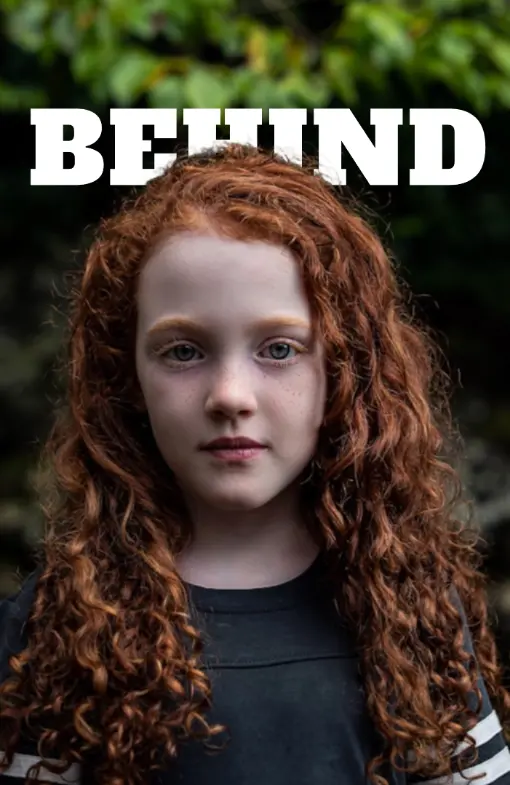
text behind object — free ai photo editor

Place text behind any object or product in seconds

Upload an Image

Drag and drop or click to select

Maximum file size: 50MB

Or upload from URL
Or try with a sample image:
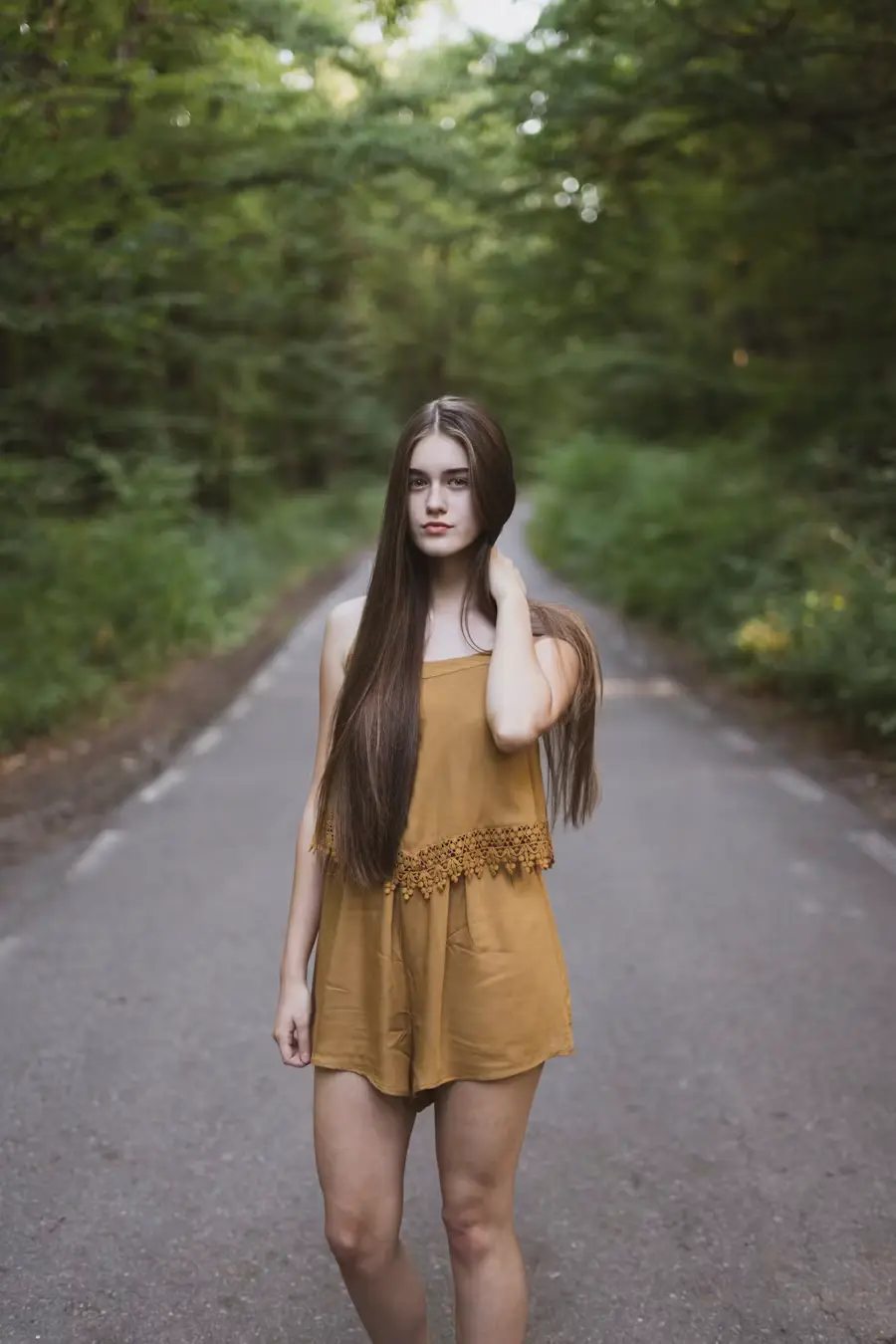
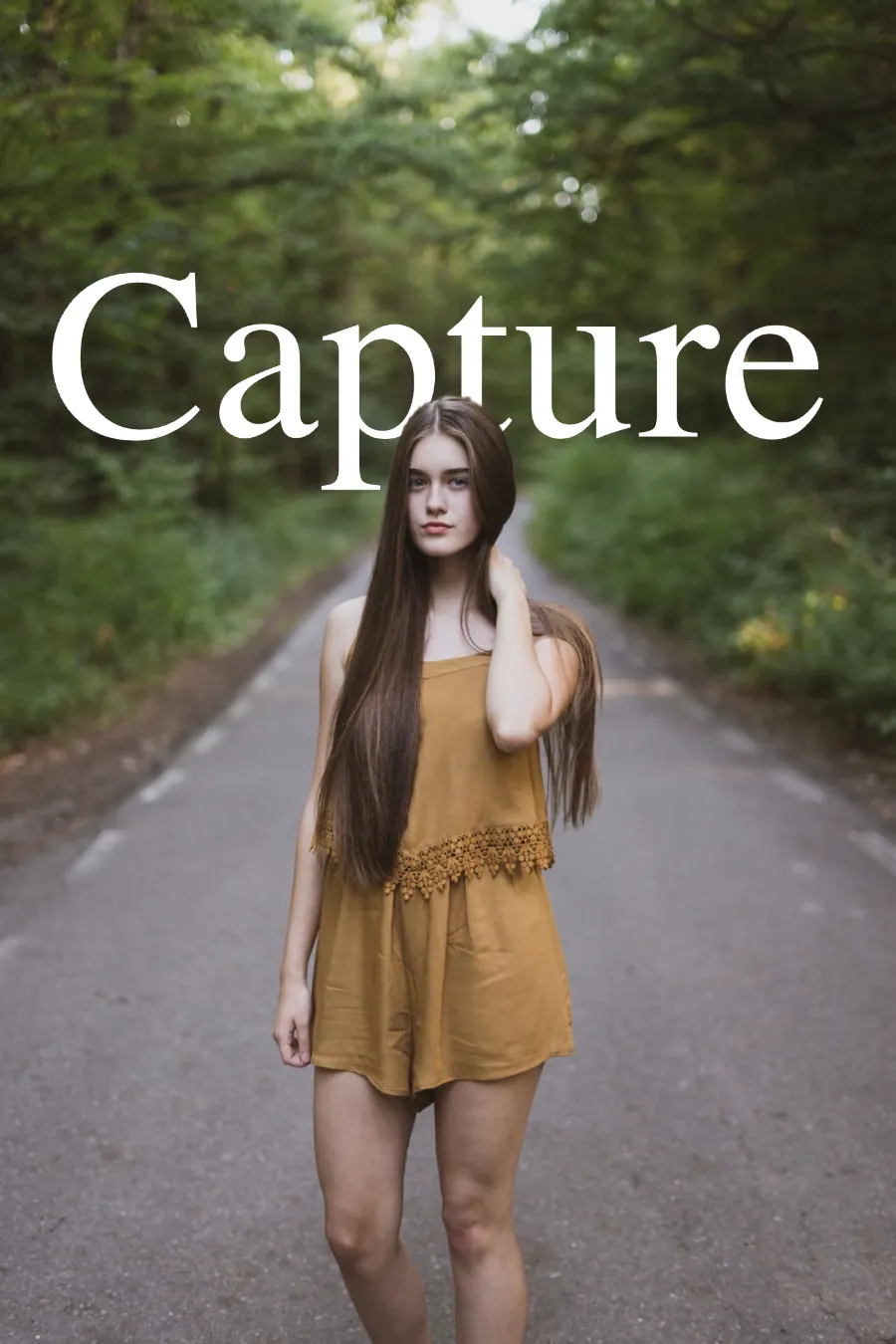
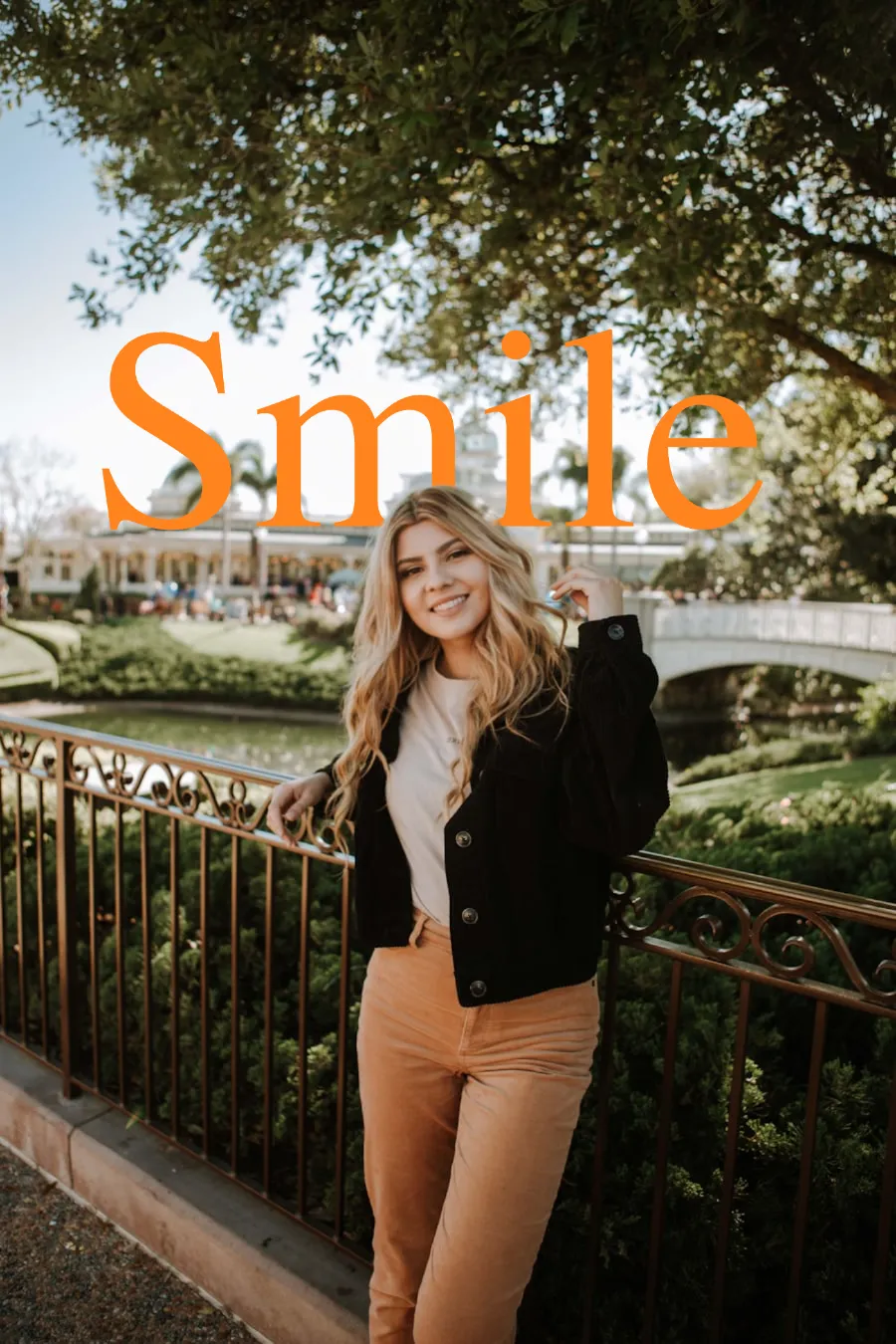
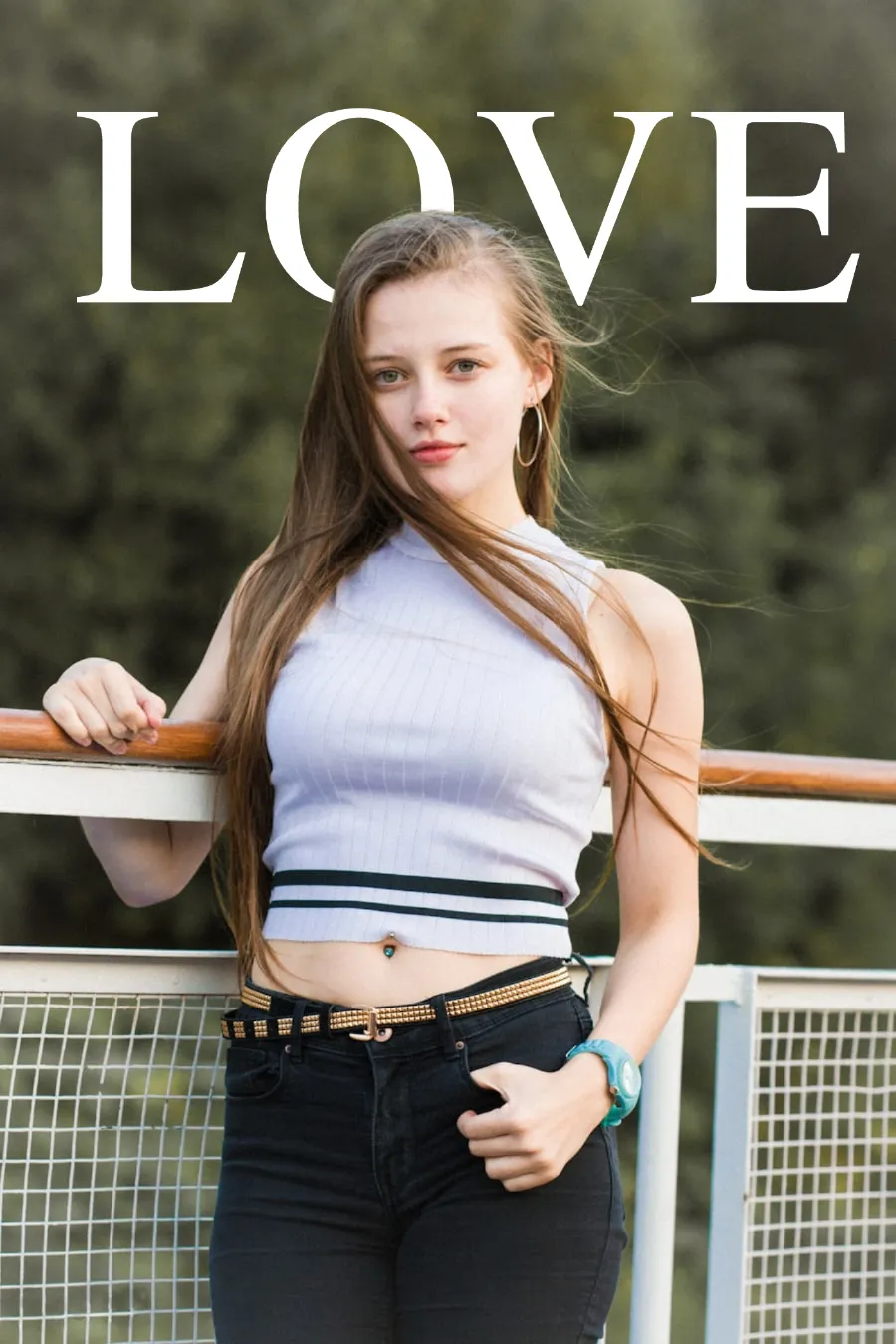
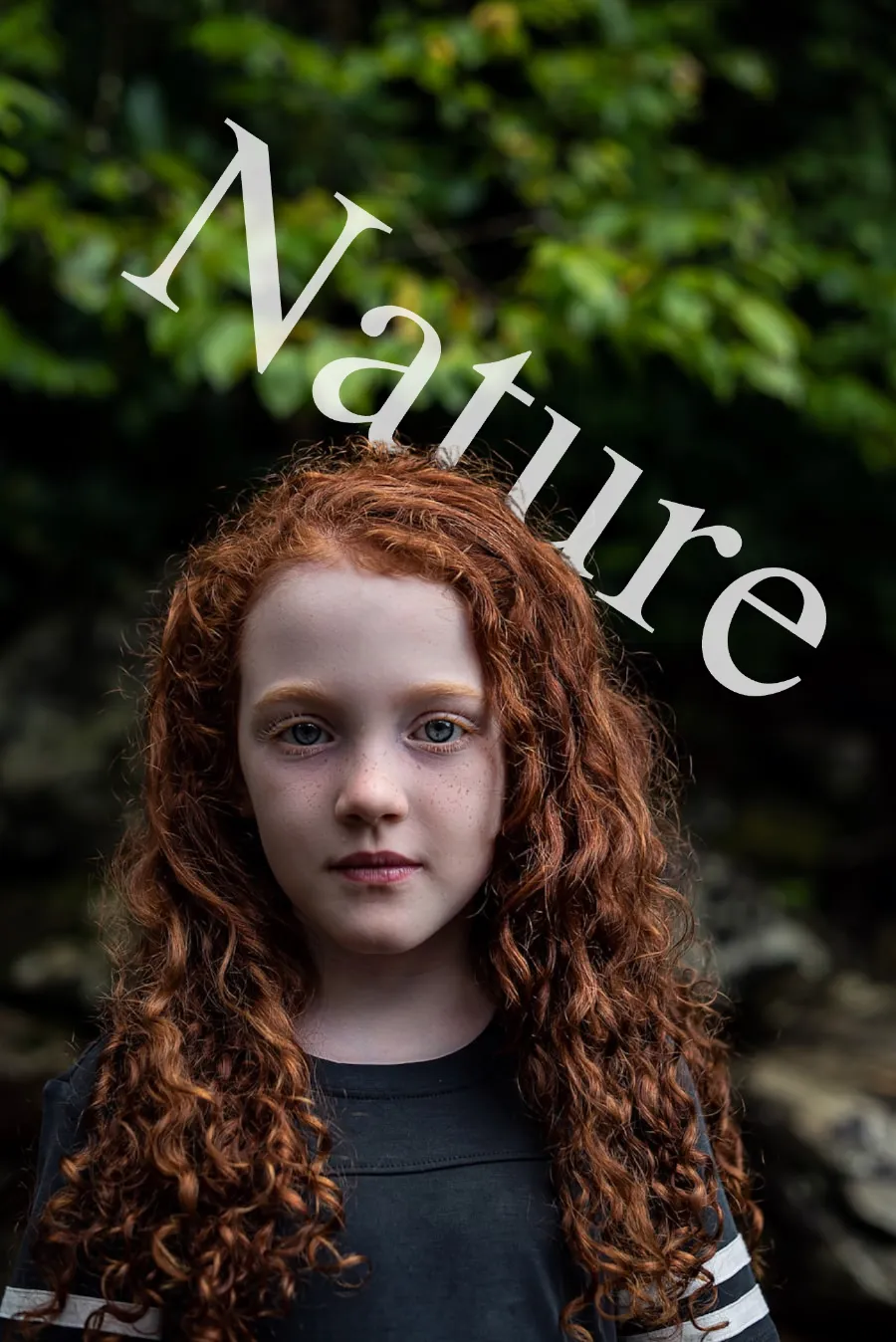
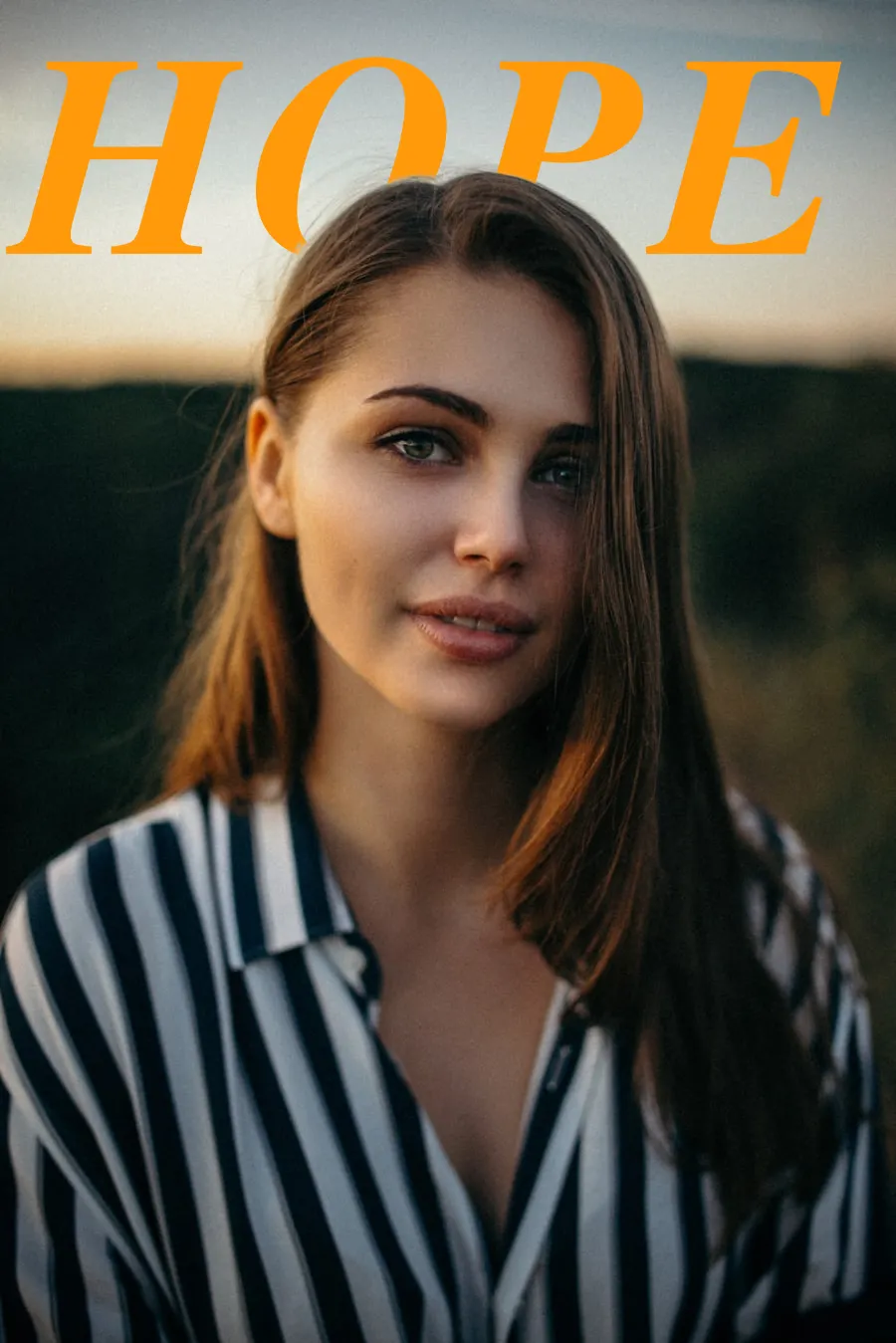
Sample portrait photo for text behind image effect Sample woman photo to try text behind image tool Sample outdoor portrait for text overlay design Sample fashion portrait for text behind image editor

Showcase

Make your photos look like cool posters
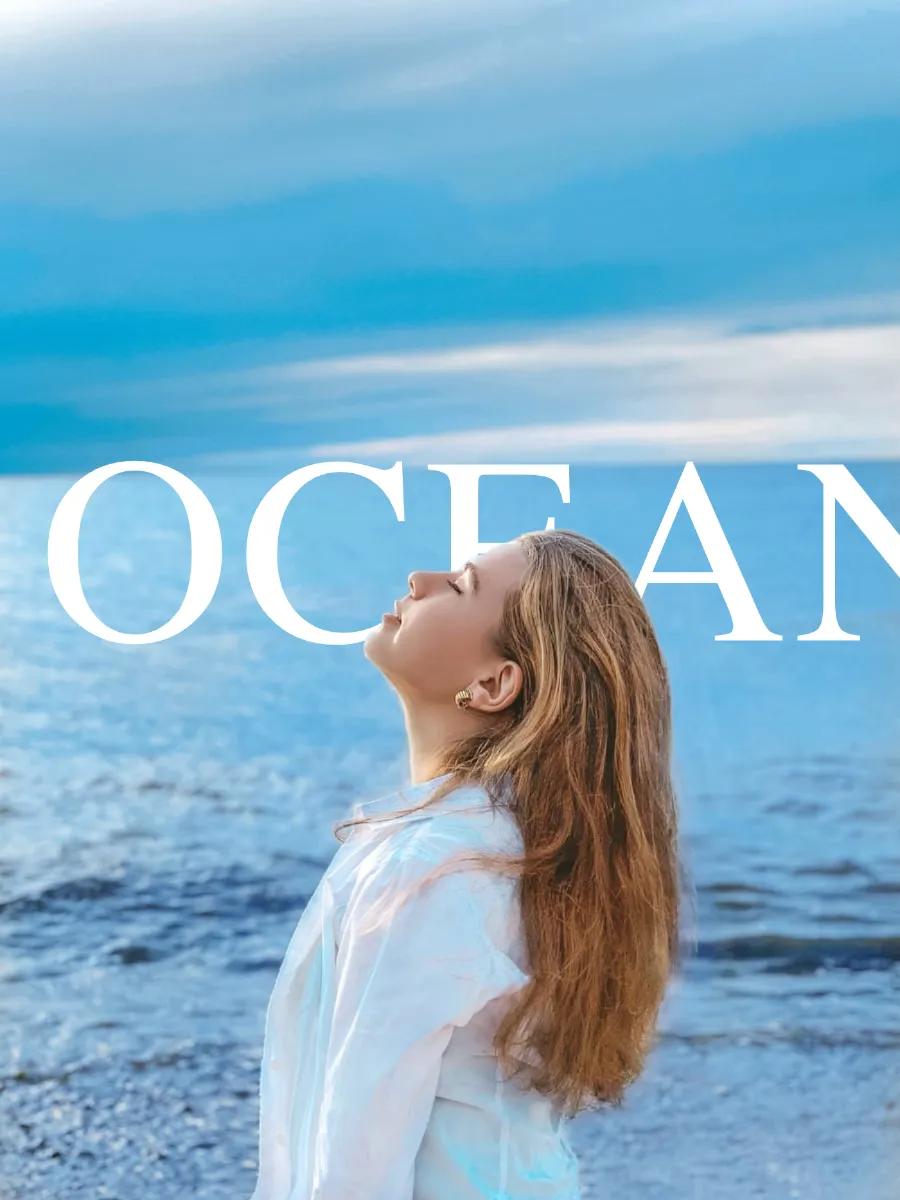
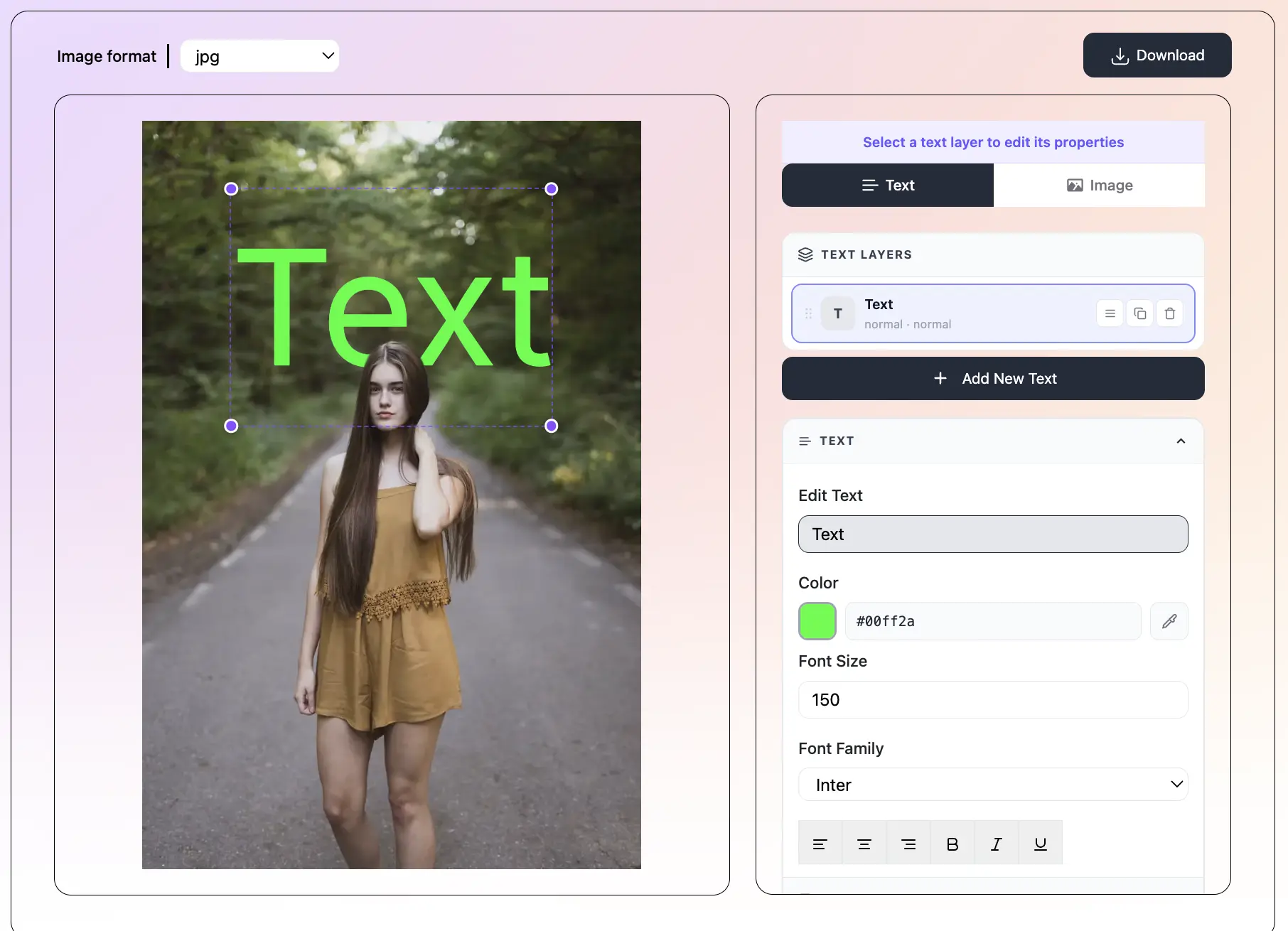
Image format
Please wait... First run may take 30–60s while the AI model loads. Next time it'll be instant.
Processing image 😊.....
TEXT LAYERS
Upload an image to start
Add or select a text layer
to edit its properties
BLEND MODE
EFFECTS
Subject Image
Background Image
Both Images
textbehindimg.com - Free text behind image editor | Product Hunt Buy Me A Chai

How to Put Text Behind an Object — Step by Step

1

Upload a Photo of the Object

Drop a JPEG, PNG, or WebP photo containing your object onto the editor or click to browse. The AI detects the subject — product, animal, vehicle, or other object — automatically. All detection runs in your browser with no data sent to a server.

2

Add Your Text

Click 'Add Text' to create a Text Layer. Type your text, pick a font from 150+ options, choose a color and size. Apply a preset for an instant complete style. For product photos, Minimal, Chrome, or Neon presets often work especially well.

3

Place Text Behind the Object

Switch Overlay Mode to Behind. The text now sits behind the object. Reposition by dragging or using the sliders. Use blend modes to make the text look integrated with the photo. Add 3D depth or perspective tilt for a professional finish.

4

Adjust and Download

Use the filter tabs to fine-tune the object or background brightness, contrast, and saturation independently. Click Download when ready — the format matches your upload automatically. The file saves to your device with no watermark.

What is TextBehindImg?

TextBehindImg lets you place text behind any object in a photo — products, animals, cars, food, furniture, or anything else with a clear outline. Upload your photo, add your text, and the AI automatically detects the object and places your text behind it. No manual masking, no Photoshop skills needed. Everything works in your browser for free.

Text behind image example — person with text placed behind them
AI Detects Objects, Products, and Animals - text behind image feature

AI Detects Objects, Products, and Animals

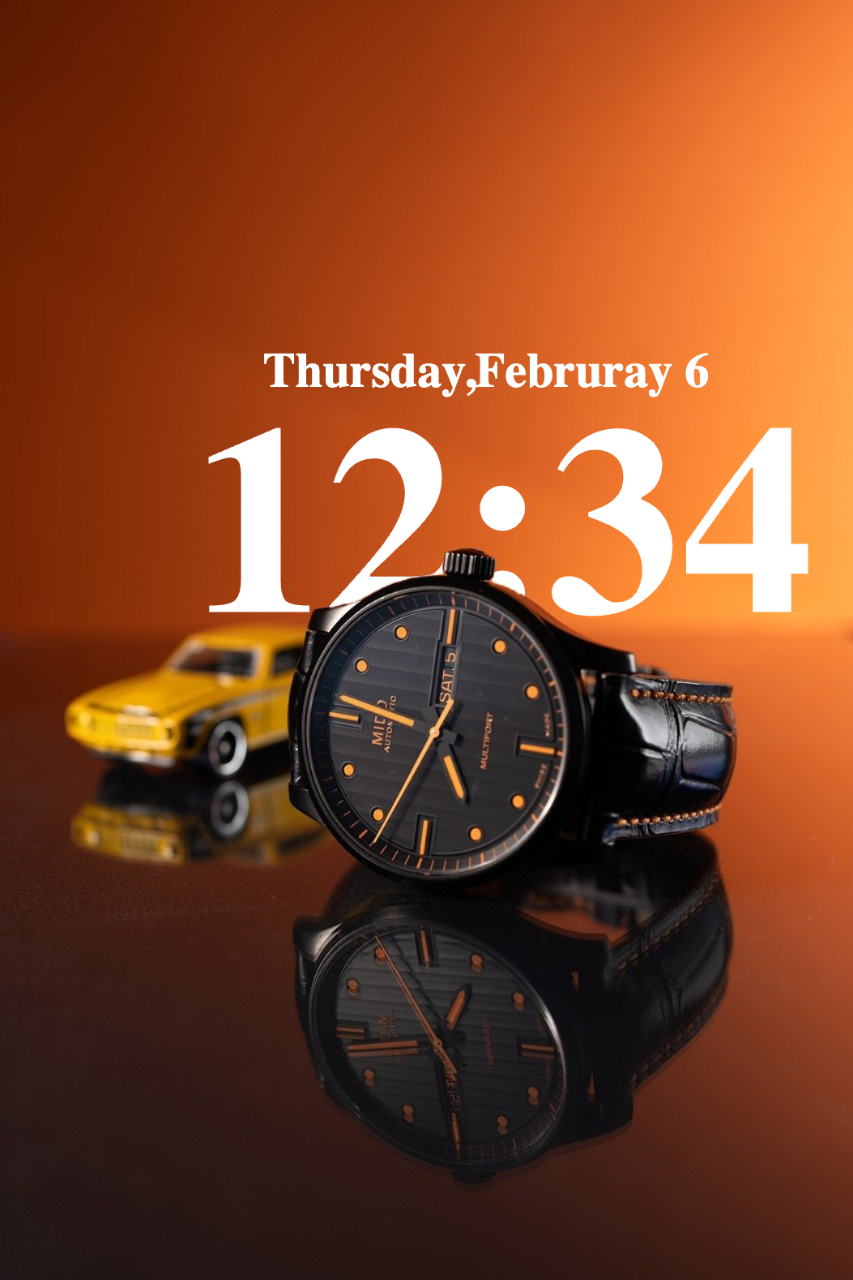
The AI identifies a wide range of subjects beyond people — products on white backgrounds, animals, vehicles, furniture, food, and more. As long as the object has reasonable contrast from its background, the text-behind effect works cleanly and automatically.

Free with No Signup and No Watermark - text behind image feature

Free with No Signup and No Watermark

All features are completely free with no account required. Your downloads have no watermarks and there are no usage limits. Every photo stays on your device — AI detection runs locally in the browser so nothing is ever uploaded.

36 Style Presets for Product and Object Photos - text behind image feature

36 Style Presets for Product and Object Photos

Apply a complete text style in one click — 36 presets including Neon, Chrome, Minimal, Fire, Vintage, Arcade, and more. Ideal for product photography, e-commerce visuals, and promotional graphics where the object is the hero.

Full Typography Control Per Text Layer - text behind image feature

Full Typography Control Per Text Layer

150+ Google Fonts, letter spacing, rotation, size, alignment, bold, italic — all adjustable per layer. Use Split to Characters to break text into individual letters and style each one separately for typographic object compositions.

Blend Modes for Seamless Object Integration - text behind image feature

Blend Modes for Seamless Object Integration

7 blend modes let you blend text into the object photo naturally. Screen lightens, Multiply darkens, Overlay boosts contrast — great for making text look like it belongs in the scene rather than sitting on top of it.

Subject and Background Filters Separately - text behind image feature

Subject and Background Filters Separately

Adjust brightness, contrast, and saturation on the object alone, the background alone, or both at once. This lets you make the object pop from the background while keeping your text behind it perfectly visible.

Frequently asked questions

The AI detects a wide range of objects — products, bottles, bags, shoes, cars, animals, food, plants, and more. It works best when the object has visible contrast from its background. Product photos on plain or lightly textured backgrounds give the cleanest results.

Yes — product photography is one of the strongest use cases. Upload a product photo, add a brand name or tagline behind the product, and download a polished image ready for ads, listings, or social media.

Yes. The AI detects animals as subjects. Portraits of dogs, cats, birds, and other animals with a reasonably clear background work well for the text-behind effect.

The AI uses contrast and shape detection. If the object blends strongly into the background — for example, a dark object on a dark background — the edge detection may be less precise. For best results, use photos where the object is visually distinct from the background.

Completely free. No subscription, no account, no watermarks. Use it for as many product photos as you need.

Yes. You own all the images you create. Use them for e-commerce listings, paid ads, client deliverables, or any commercial purpose without attributing this tool.

No. Every step — AI detection, text rendering, filters, and download — runs locally in your browser. Your product photos never leave your device.

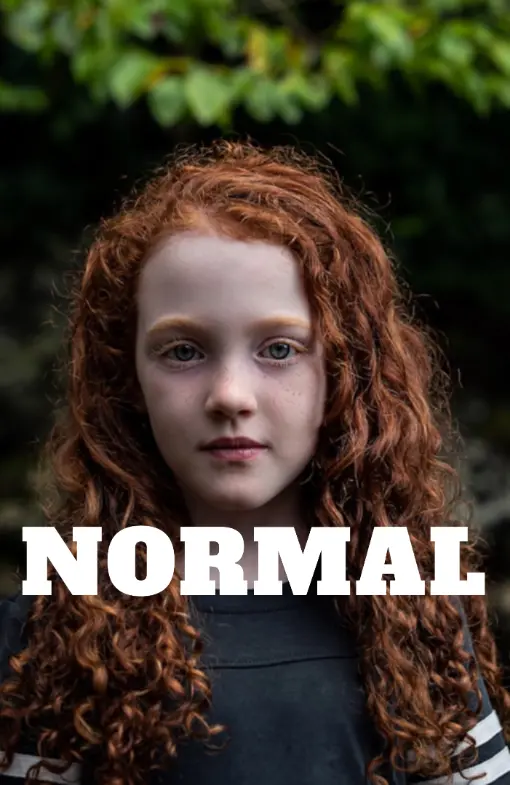
Yes. Each Text Layer has its own Overlay Mode. Set one to Behind and another to Normal to create a composition where text wraps around the object — part of the text behind and part in front.

Recent Posts