change image background ai free background changer

Remove and replace any image background in seconds

Upload a Photo

Drag and drop or click to select

Maximum file size: 50MB

Change Image Background AI

Remove and replace your photo's background in seconds

  • AI removes the background in one click
  • Solid color, upload, presets, or Pexels search
  • Live preview as you pick a new background
  • Download in PNG, JPG, or WebP no watermark
  • Runs 100% in your browser photos stay on your device
Removing background
Foreground subject with background removed

Tip: use the tabs on the right to pick a new background. The preview updates as you choose.

DOWNLOAD

How to Change Image Background with AI Step by Step

1

Upload Your Photo

Drag and drop a JPEG, PNG, or WebP file, or click to browse. The AI starts working the moment your photo is loaded. Everything runs in your browser no data is sent to a server.

2

Let the AI Remove the Background

The AI finds the main subject and cuts out the background right away. You will see the subject on a transparent background in the preview. This takes just a few seconds for most photos.

3

Pick a New Background

Choose one of four options. Color: pick any color you want. Upload: use your own image as the new background. Presets: pick from ready-made backgrounds. Pexels: search millions of free photos and click any result to apply it.

4

Download Your New Image

Once you like the result, click Download. Pick PNG, JPG, or WebP. Adjust the quality if you want. The file saves to your device with no watermark, ready for social media, ads, or client work.

What is TextBehindImg?

Change the background of any photo with AI for free, right in your browser. Upload a picture, let the AI remove the old background in one click, then pick a new one. Choose a solid color, upload your own photo, use a ready-made preset, or search Pexels for the perfect background. No signup, no watermark, and your photos never leave your device. Works on phones, tablets, and computers.

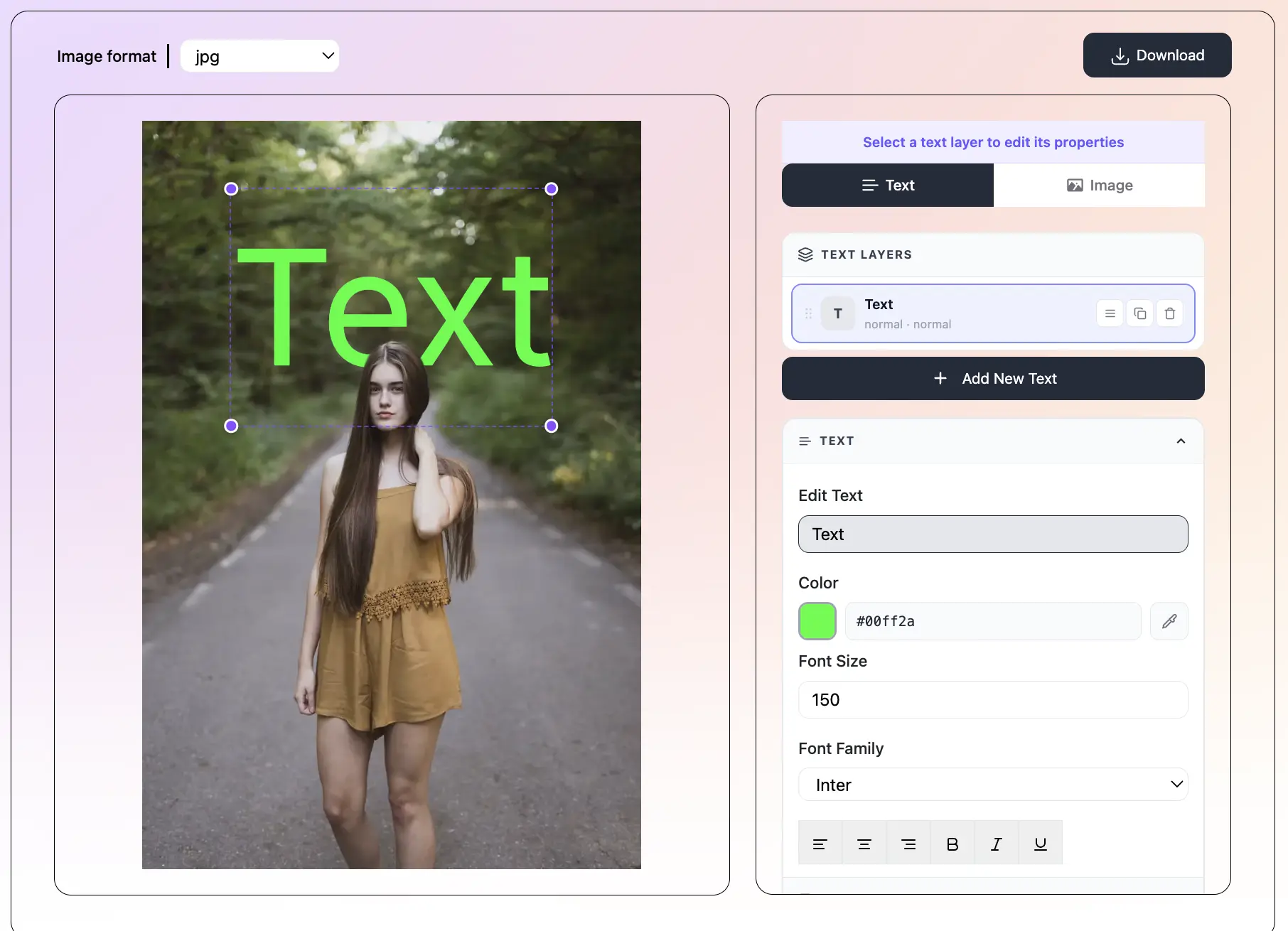
Text behind image example  person with text placed behind them
AI Removes the Background in One Click - text behind image feature

AI Removes the Background in One Click

Upload any photo and the AI finds the subject and removes the background right away. It works with people, products, animals, and objects. No manual selection, no tracing, no Photoshop skills needed.

Four Ways to Set a New Background - text behind image feature

Four Ways to Set a New Background

Pick any solid color from a color picker or preset chips. Upload your own image as the new background. Choose from ready-made backgrounds we ship with the tool. Or search Pexels for millions of free, high-quality photos.

Built-In Pexels Search - text behind image feature

Built-In Pexels Search

Type any word beach, city, studio, forest, sunset and see live results from Pexels. Click any thumbnail to apply it as the new background right away. All Pexels photos are free to use for personal and commercial projects.

Live Preview as You Choose - text behind image feature

Live Preview as You Choose

The preview updates the moment you change color, upload a new photo, or pick a Pexels result. You see the final look right away so you can compare backgrounds and pick the best one.

Download in PNG, JPG, or WebP - text behind image feature

Download in PNG, JPG, or WebP

Save your final image in your preferred format. Pick PNG if you want a transparent background. Set the quality for JPG and WebP. The image saves to your device with no watermark.

100% Free and Private - text behind image feature

100% Free and Private

Every feature is free no signup, no subscription, no watermark. All AI processing runs inside your browser, so your photos never get uploaded to a server.

Frequently asked questions

The AI runs a machine-learning model directly in your browser. It looks at the photo and separates the main subject from the background. This means no server upload your photo stays private on your device.

Photos where the subject stands out clearly from the background give the best results. Portraits, product shots, and animal photos on plain or simple backgrounds work great. Photos with very complex backgrounds still work but the edge may be less crisp.

Yes. In the Upload tab, click 'Choose Image' and pick any photo from your device. It becomes the new background right away.

Type any word into the search box and we fetch matching photos from Pexels. Click any thumbnail to apply it as the new background. All Pexels photos are free to use, including for commercial projects.

No. Every feature is free with no account required. There are no watermarks and no usage limits.

Yes. The tool works in any modern browser on iPhone, Android, and tablets. Upload from your camera roll, pick a new background on the touchscreen, and save the finished image to your device.

Yes. You own the images you create. Use them for social media, ads, e-commerce, or client work with no attribution required.

No. The AI runs inside your browser and your photo never leaves your device. Pexels results are streamed as image thumbnails but your own photo stays local.

What Is 'Change Image Background AI'?

Change Image Background AI is a tool that removes the current background from any photo and lets you put a new one in its place. The 'AI' part means a computer program does the hard work of picking out the subject from the background something that used to take a lot of manual work in Photoshop or GIMP.

You do not have to draw around the person or object. The AI looks at the photo, spots the main subject, and cuts around it in seconds. Then you get to pick any new background you like a color, a photo of your own, a ready-made choice, or something from the huge Pexels library.

This is one of the fastest ways to make product shots pop, put a person into a new scene, create fun profile pictures, build ads that look professional, or clean up photos for e-commerce listings.

Four Ways to Set a New Background

The tool gives you four background options so you can pick the one that fits your project:

  • Color: pick any color from a color picker or one of the preset color chips. Great for product photography, profile pictures, and simple, clean designs.
  • Upload: use any image on your device as the new background. Great for putting a person into a family photo, a vacation scene, or a stock backdrop.
  • Presets: choose from a small set of ready-made backgrounds soft gradients, studio setups, and simple scenes that we ship with the tool.
  • Pexels: search millions of free stock photos and pick one as your background. Type any word (beach, city, forest, gym, office) and browse the live results.

Common Ways to Use This Tool

People use AI background changers for lots of everyday and creative projects:

  • Turn casual photos into clean product shots for Amazon, Etsy, or Shopify listings
  • Change a plain office headshot into a branded LinkedIn profile picture
  • Move a person from a boring background into a stunning outdoor scene
  • Make matching social media graphics with the same background across many posts
  • Create fun profile pictures with colorful or themed backgrounds
  • Prepare passport-style photos with a solid white or blue background
  • Build ad creatives where the subject stays sharp but the background changes to fit the campaign

Change Background AI vs. Manual Editing

Removing a background by hand in Photoshop can take 5 to 30 minutes for each photo, especially if the subject has fine hair or complex edges. The AI does it in a few seconds and often gets the edges just as clean.

Manual editing tools like GIMP and Photoshop still have their place for very tricky photos, an expert can outperform any AI. But for 95% of everyday images (portraits, products, pets, food, cars) the AI gives you results that look just as good in a fraction of the time.

The other big difference: this tool runs 100% in your browser. There is no software to install, no account to create, and no photo upload to worry about. Everything happens on your device.

Tips for the Best Results

Small changes to your source photo can lead to much better final results:

  • Use photos where the subject stands out clearly from the background even lighting on the subject helps the AI find its edges.
  • Photos with plain backgrounds (studio, wall, sky) give the cleanest cutouts.
  • For portraits, watch out for stray hairs the AI does its best, but very thin hair on a busy background is the hardest case.
  • When picking a new background, try to match the lighting direction. A subject lit from the left looks natural on a background that is also brighter on the left.
  • For product photos, a soft gradient or a solid white background often looks more professional than a busy photo.
  • Download PNG if you want to keep the transparent background for use in another tool. Download JPG for the smallest file size when the final background is opaque.

Recent Posts

🔖

Save TextBehindImg

Press Ctrl+D (or ⌘D on Mac) to bookmark and come back anytime it's free forever.