blur image online — free ai tool, no sign-up

Upload any image and blur the background in seconds — 100% free

Upload a Photo

Drag and drop or click to select

Maximum file size: 50MB

Or upload from URL
Or try with a sample image

Young man portrait — try AI blur background free online Smiling man — blur photo background with AI Professional headshot — blur background online free Woman portrait — background blur AI tool

Blur Image Background

AI blurs your background in seconds — subject stays sharp

  • AI finds the subject and blurs only the background
  • Adjust blur from light to max with one slider
  • Makes photos look like a DSLR or portrait mode
  • Download in PNG, JPG, or WebP — no watermark
  • Runs 100% in your browser — photos stay on your device

Your blurred photo will appear here

Tip: Move the slider on the right to change how much blur is added.
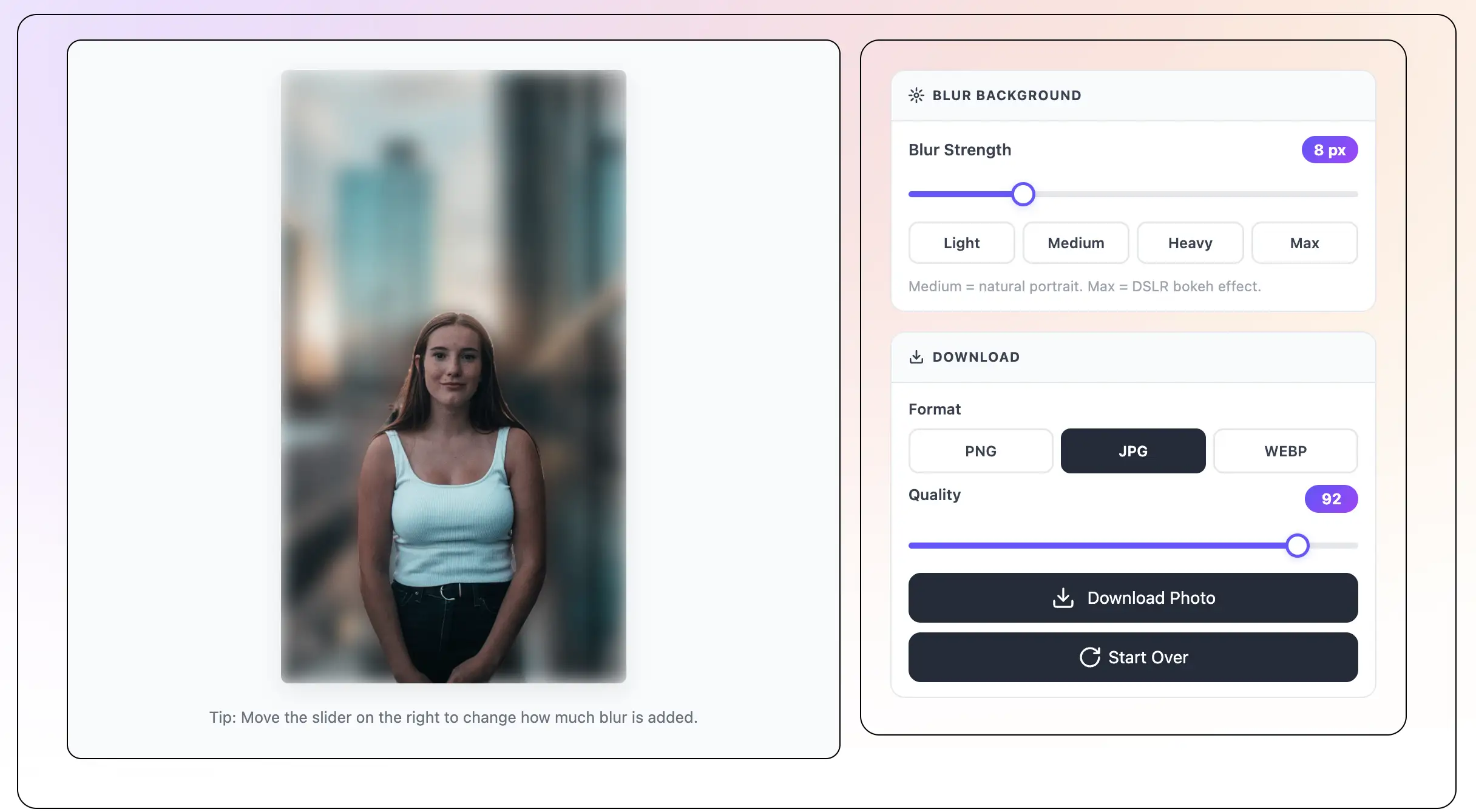
Blur Background
Blur Strength 12 px

Medium = natural portrait. Max = DSLR bokeh effect.

Download
Quality 92

How to Blur an Image Online — Step by Step

1

Upload Your Image

Drag and drop your image, click to browse, or paste a URL. Try one of our sample images to see the tool in action. Supports JPEG, PNG, and WebP up to 50MB.

2

AI Detects the Subject

The AI scans your image and finds the main subject. It separates the subject from the background automatically. This takes a few seconds.

3

Adjust the Blur

Move the slider or click a preset button to set how much blur you want. Light is a small blur. Max is a strong bokeh effect. The preview updates right away.

4

Download — No Watermark

Click Download. Choose PNG, JPG, or WebP. The image downloads to your device with no watermark and no sign-up. Done.

What is Blur Image Online?

Blur the background of any image online — for free, right in your browser. No sign-up. No watermark. No app to download. Upload your image and the AI finds the subject and blurs the background in seconds. Adjust the blur strength with a simple slider. Download your image in PNG, JPG, or WebP. Works on iPhone, Android, tablets, and computers. Use it as many times as you want — always free.

Blur image online free — AI background blur tool no signup
AI Blurs Background in Seconds - text behind image feature

AI Blurs Background in Seconds

Upload any image and the AI automatically finds the subject and blurs the background. No manual work needed. Fast results on any image.

Adjustable Blur — Any Strength - text behind image feature

Adjustable Blur — Any Strength

Use the slider to set the blur from 1 to 30. Or use the preset buttons: Light, Medium, Heavy, or Max. The preview updates as you adjust.

No Sign-Up Required - text behind image feature

No Sign-Up Required

Open the page, upload your image, and download the result. No account, no email, no password. Fast and simple.

No Watermark on Downloads - text behind image feature

No Watermark on Downloads

Every download is free of watermarks. The image you download is clean and ready to use — no branding, no marks.

100% Free — Unlimited Use - text behind image feature

100% Free — Unlimited Use

The tool is completely free. No subscription. No usage limit. Blur as many images as you want.

Works on Any Device - text behind image feature

Works on Any Device

The tool works in any browser on iPhone, Android, Mac, Windows, and tablets. Upload from your camera roll or file system and download the finished image.

Frequently asked questions

Yes. This tool is completely free. Upload any image, blur the background, and download. No sign-up, no subscription, no watermark, no usage limit.

No. You do not need an account, an email, or a password. Open the page, upload your image, adjust the blur, and download. That is all.

No. Every download is completely free of watermarks. Your image is clean and ready to use the moment you download it.

As many as you want. There is no usage limit. The tool is free for everyone, every time.

Yes. It works in Safari, Chrome, and other browsers on iPhone. Upload a photo from your camera roll, adjust the blur, and save the finished image.

Yes. It works in Chrome and other browsers on Android phones and tablets. The full tool works the same on Android as on a computer.

Yes. This tool runs in your browser. No software to install, no app to download. It does the same job as Photoshop in a few seconds.

The tool accepts JPEG, PNG, and WebP files up to 50MB. You can download the result as PNG, JPG, or WebP.

Free Online Image Background Blur — What to Expect

Many tools online claim to blur a background for free, but then add a watermark or ask you to pay to remove it. This tool is different. It is completely free — no sign-up, no subscription, no watermark, and no usage limit. Upload any image, blur the background, and download the clean result.

The AI runs inside your browser, so your image stays on your device. Nothing is sent to a server. Your privacy is protected the whole time.

What You Can Do With a Blurred Background Image

A blurred background makes an image look cleaner and more professional. Here are some common uses:

  • Profile pictures for LinkedIn, Instagram, Twitter, TikTok, and dating apps.
  • Professional headshots for resumes, company websites, and job applications.
  • Product images for Etsy, Amazon, Shopify, or social media ads.
  • Selfies taken in messy rooms — blur the background to hide the clutter.
  • YouTube thumbnails — a blurred background keeps the focus on the person.
  • Event and party photos — blur a busy background to focus on the subject.

No Sign-Up, No Watermark — Really Free

Most free online tools have a catch — a watermark on the download, a limit on how many times you can use it, or a sign-up wall to get the full features. This tool has none of those.

It is free for everyone. Open the page, upload your image, adjust the blur, and download. No account needed. No watermark on the result. No limit on how many images you blur. Free means free.

Tips for Getting Great Results

Follow these simple tips for the best blur results:

  • Upload a clear, well-lit image where the subject is easy to see in front of the background.
  • Start with Medium blur (12) and increase if you want more blur.
  • Light blur (5) is best for professional photos like headshots and LinkedIn pictures.
  • Heavy or Max blur is best for creative portraits, social media, and when you want a strong DSLR effect.
  • If the edges around the subject look rough, try a slightly lower blur setting — the imperfections are less visible at lower blur.
  • Download as PNG for the best quality. Download as JPG for a smaller file size.

More free tools to try

All free, no sign-up — same photo works across every tool

Recent Posts

🔖

Save TextBehindImg

Press Ctrl+D (or ⌘D on Mac) to bookmark and come back anytime it's free forever.