blur image background — free ai tool online

Blur your photo background in seconds. no photoshop. no app.

Upload a Photo

Drag and drop or click to select

Maximum file size: 50MB

Or upload from URL
Or try with a sample image

Young man portrait — try AI blur background free online Smiling man — blur photo background with AI Professional headshot — blur background online free Woman portrait — background blur AI tool

Blur Image Background

AI blurs your background in seconds — subject stays sharp

  • AI finds the subject and blurs only the background
  • Adjust blur from light to max with one slider
  • Makes photos look like a DSLR or portrait mode
  • Download in PNG, JPG, or WebP — no watermark
  • Runs 100% in your browser — photos stay on your device

Your blurred photo will appear here

Tip: Move the slider on the right to change how much blur is added.
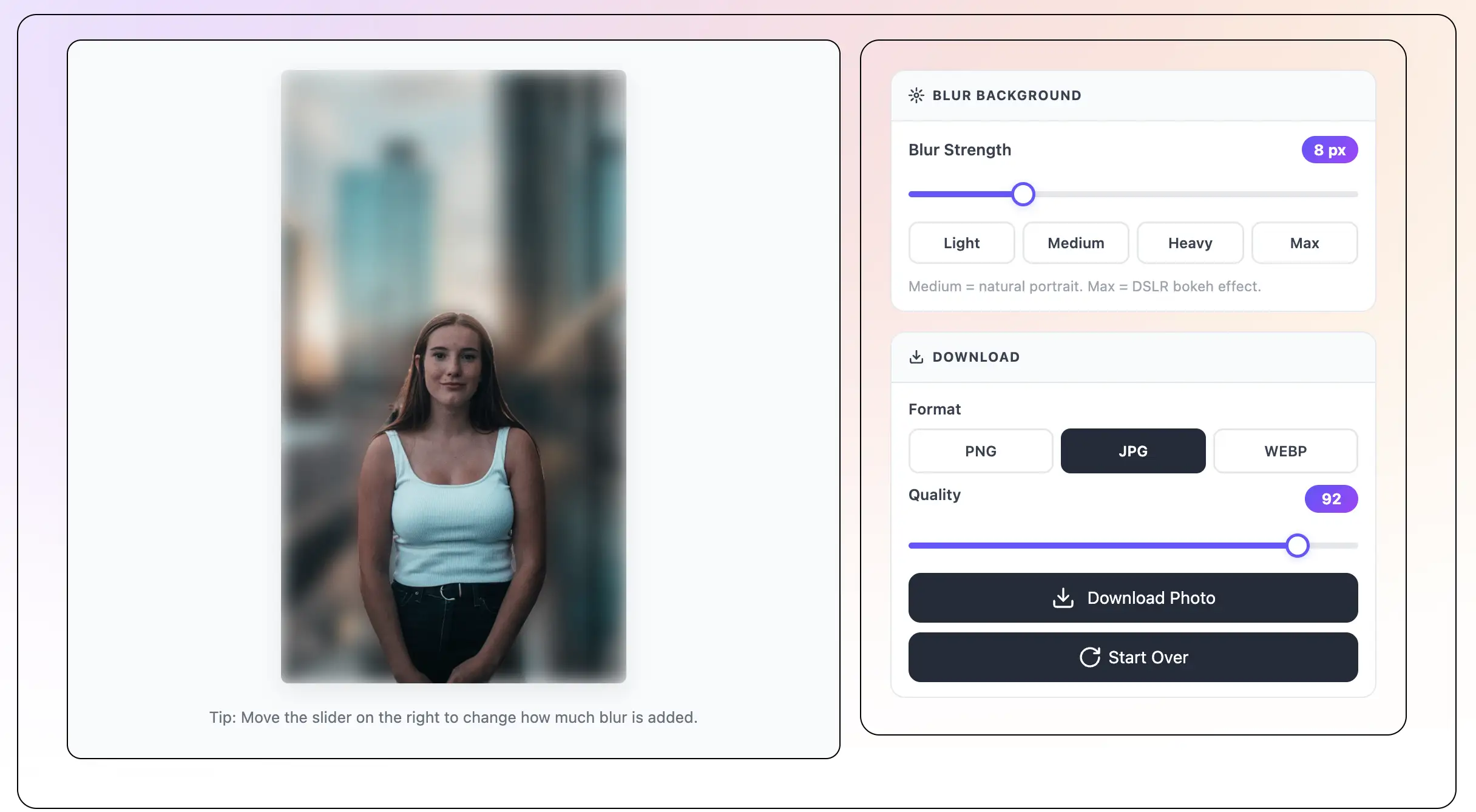
Blur Background
Blur Strength 12 px

Medium = natural portrait. Max = DSLR bokeh effect.

Download
Quality 92

How to Blur Image Background — Step by Step

1

Upload Your Photo

Drag and drop a photo onto the page, or click Select File to browse. You can also paste a URL or click one of our sample photos. The tool accepts JPEG, PNG, and WebP files up to 50MB.

2

AI Blurs the Background

The AI looks at your photo and finds the main subject. It separates the subject from the background in seconds. The background gets blurry while the subject stays sharp and clear.

3

Adjust the Blur Strength

Move the slider to change how blurry the background looks. Try the preset buttons: Light for a small blur, Medium for a natural portrait look, Heavy for a strong blur, or Max for a DSLR bokeh effect.

4

Download Your Photo

Click Download and save your photo. Pick PNG, JPG, or WebP. For JPG and WebP, you can also set the quality level. The file saves with no watermark and no sign-up needed.

What is Blur Image Background?

Blur the background of any photo — for free, right in your browser. Upload your picture and the AI finds the person or object in front. It blurs only the background. The subject in front stays sharp and clear. Move the slider to pick how much blur you want. Download your photo with no watermark and no sign-up. Works great for selfies, portraits, product photos, and headshots. Works on phones, tablets, and computers.

Blur image background online free — AI background blur tool
AI Finds the Subject in One Click - text behind image feature

AI Finds the Subject in One Click

Upload any photo and the AI spots the person or object in front right away. It separates the subject from the background in seconds. No manual selection, no tracing, no skill needed.

Adjust Blur from Light to Max - text behind image feature

Adjust Blur from Light to Max

Use the slider to pick how much blur you want. Choose Light for a small blur, Medium for a natural portrait look, Heavy for a strong blur, or Max for a full DSLR bokeh effect.

Makes Photos Look Like a DSLR - text behind image feature

Makes Photos Look Like a DSLR

A blurred background makes any photo look like it was taken with a professional camera. This is the same blur effect that DSLR cameras and portrait mode on phones create.

Download in PNG, JPG, or WebP - text behind image feature

Download in PNG, JPG, or WebP

Save your photo in the format you need. Pick JPG for smaller file size or PNG for best quality. Set the quality level for JPG and WebP. The file saves to your device with no watermark.

100% Free — No Sign-Up, No Watermark - text behind image feature

100% Free — No Sign-Up, No Watermark

Every feature is free. You do not need to create an account. There are no watermarks on your photos. Use it as many times as you want.

Your Photos Stay Private - text behind image feature

Your Photos Stay Private

All the AI work happens inside your browser on your device. Your photos are never sent to a server. They stay on your device the whole time.

Frequently asked questions

The AI runs inside your browser. It looks at your photo and finds the main subject — usually a person, face, or object. It separates the subject from the background. Then it blurs the background while keeping the subject sharp. No data is sent to a server.

Yes. Use the blur slider to pick any amount from 1 to 30. Or use the quick preset buttons: Light (5), Medium (12), Heavy (20), or Max (30). The preview updates right away so you can see the result before you download.

Photos where the subject stands out from the background work best. Portraits with a clear face, product photos on simple backgrounds, and headshots all give great results. Photos with busy or complex backgrounds still work but the edges may be less sharp.

Yes. The tool works in any modern browser on iPhone, Android, and tablets. Upload from your camera roll, adjust the blur on the touchscreen, and save the photo to your device.

Yes. Every feature is free. No sign-up, no subscription, no watermark, no usage limit. Use it as many times as you want.

Yes. All the AI work runs inside your browser on your device. Your photo is never uploaded to a server. It stays on your device the whole time.

Set the blur strength to Heavy (20) or Max (30). This creates a bokeh effect — a soft, blurry background — that looks like a photo taken with a DSLR camera or portrait mode on a phone.

Yes. The AI works great for selfies and portraits. Upload your selfie, let the AI blur the background, and your photo will look like it was taken in a professional studio.

What Is Background Blur?

Background blur is a photo effect where the background of a photo looks soft and out of focus. The person or object in front stays sharp and clear. The blurry background makes the subject stand out. This effect is also called bokeh or depth of field.

You see this effect in photos taken with DSLR cameras and in portrait mode on modern phones. A big camera lens can create this effect on its own. With AI tools like this one, any photo can get the same look — even if it was taken with a phone or in a room with a messy background.

Why Blur the Background of a Photo?

Blurring the background makes your photos look better in many ways:

  • The subject stands out more. A blurry background pulls the eye straight to the person or object in front.
  • Photos look more professional. A clean, blurry background is a sign of a well-shot photo.
  • It hides messy or distracting backgrounds. A cluttered room, a busy street, or a plain white wall all look better when blurred.
  • Great for LinkedIn headshots and profile pictures — a blurred background looks clean and professional.
  • Perfect for product photos — a blurred background makes the product pop.
  • Selfies look like studio photos — a blurred background gives any selfie a polished finish.

AI Background Blur vs. Photoshop

Blurring a background in Photoshop takes many steps. You have to select the subject, mask it, apply a blur filter to a copy of the layer, and blend the edges by hand. This can take 10 to 30 minutes for one photo.

This AI tool does the same job in seconds. The AI finds the subject on its own. You do not have to select anything by hand. You just upload the photo, move a slider, and download. No software to install. No account to create.

For most everyday photos — portraits, selfies, headshots, product shots — the AI gets clean results as fast and as good as a manual edit.

How to Make a Photo Look Like a DSLR

A DSLR camera creates a blurry background because of its big lens and wide aperture. The technical term is shallow depth of field or bokeh. You can get the same look on any photo with this tool.

  • Upload your photo.
  • Set the blur strength to Heavy (20) or Max (30).
  • The background will look soft and out of focus — just like a DSLR photo.
  • Download and share.

Best Uses for Background Blur

People use this tool for many types of photos:

  • LinkedIn profile pictures and professional headshots — a blurred background looks clean and polished.
  • Instagram portraits and selfies — blur the background to make your photos stand out in the feed.
  • Product photos for Etsy, Amazon, or Shopify — a blurred background makes the product look sharp.
  • Dating app photos — a portrait-style blur makes photos look better and more natural.
  • Family and event photos with messy backgrounds — blur the background to clean up the shot.
  • YouTube thumbnails — a blurred background keeps the focus on the person in the shot.

Tips for the Best Results

A few simple things can make your results look even better:

  • Use a photo where the subject is clearly in front. The AI works best when the subject and background have different colors or tones.
  • Good lighting helps. A well-lit subject on a simple background gives the cleanest edges.
  • For portraits, make sure the face is clear and facing forward.
  • Start with Medium blur (12) and move up from there. Too much blur can look unnatural if the edges are not perfect.
  • If the edges look off, try a slightly lower blur setting — lighter blur hides any small edge imperfections.
  • Download as PNG for the highest quality, or JPG if you need a smaller file size.

More free tools to try

All free, no sign-up — same photo works across every tool

Recent Posts

🔖

Save TextBehindImg

Press Ctrl+D (or ⌘D on Mac) to bookmark and come back anytime it's free forever.