Curved text on image

Bend your words into an arch, a circle, or a wave. free. no signup.

Pick a style to start. You can change everything.
1080 × 1080

Drag the text to move it. Pull the round dots to turn or resize.Drag to move. Pinch with two fingers to resize and turn.

Private by design. Your photos and words stay in your browser. Nothing is uploaded to our servers.

How to Curve Text on an Image

1

Add Your Photo

Open the Background tab and upload your picture. You can also drop a file onto the page or paste one. No photo? Pick a sample or search for a free one.

2

Type Your Words

Click the Text tab and type. Short lines look best on a curve. Pick a bold font so the bend is easy to see.

3

Bend the Text

Open the Curve tab. Choose Curved, then slide the bar. Move it right to arch the text up. Move it left to dip it down. Tap Full circle for a ring.

4

Move It, Then Download

Drag the text where you want it. Pull the dots to turn it or make it bigger. When it looks right, pick PNG, JPG, or WebP and press Download.

What Is Curved Text on an Image?

Curved text is a line of words that follows a bend instead of a straight line. It can arch like a rainbow, dip like a smile, wave like the sea, or go all the way around a circle.

People use it on logos, badges, stickers, posters, and photos. A curve makes plain words feel like part of a picture.

This tool does it in a few clicks. Add your photo, type your words, and slide one bar to bend them. It is free, there is no sign up, and your photo never leaves your device.
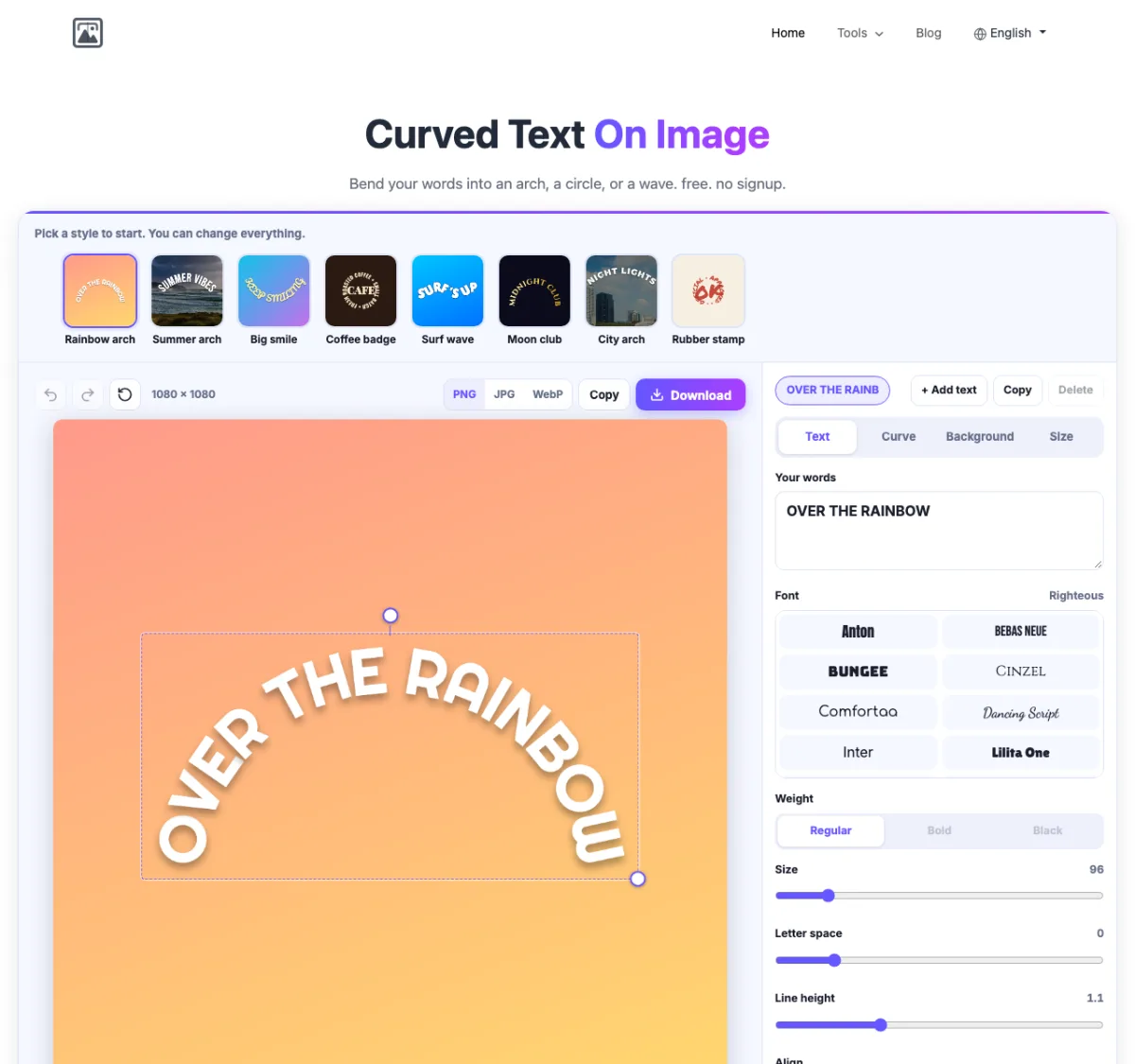
The free curved text on image tool with ready-made styles, a live preview, and simple controls
Bend Any Way You Like - curved text on image feature

Bend Any Way You Like

Slide one bar to arch the text up or dip it down. Tap Half circle or Full circle for a round badge. Tap Flip to turn the curve over.

Arch, Smile, Circle, and Wave - curved text on image feature

Arch, Smile, Circle, and Wave

Pick Straight, Curved, or Wave. Curved goes from a gentle bend to a full circle. Wave makes the letters roll up and down like water.

Put It on Your Own Photo - curved text on image feature

Put It on Your Own Photo

Upload a picture, drop one on the page, or paste it. You can also search free photos or use a sample. The canvas fits your photo.

8 Ready-Made Styles - curved text on image feature

8 Ready-Made Styles

Rainbow arch, Summer arch, Big smile, Coffee badge, Surf wave, Moon club, City arch, and Rubber stamp. Click one, then change the words.

Stack Many Texts - curved text on image feature

Stack Many Texts

Add up to 8 text layers. Put a big word in the middle and a curved ring around it to make a badge or a stamp.

Free and Private - curved text on image feature

Free and Private

No account. No watermark. Your photos and words stay in your browser and are never uploaded. Download as PNG, JPG, or WebP.

Frequently asked questions

Add your photo, type your words, and open the Curve tab. Choose Curved and slide the bar. The text bends right away. Then drag it into place and download.

Choose Curved, then tap Full circle. The words wrap all the way around. Add a dot or a star between phrases so the end of the text does not touch the start. You can also add a second text layer in the middle.

Yes. Slide the bar to the left, or tap Flip up / down. The words will dip in the middle, like a smile.

Yes. Choose Wave, then change the wave height and the wave length. Short, tall waves look playful. Long, low waves look calm.

It is free. There is no sign up and no watermark. You can use your finished picture anywhere you like.

Yes. Everything happens in your browser. Your photo is not sent to our servers.

Yes. Drag the text with one finger. Pinch with two fingers to make it bigger or turn it. The controls sit under the picture.

Which Curve Should You Use?

Each bend gives the words a different feel. Here is a quick guide.

A gentle arch (about 60 to 120 degrees) is calm and friendly. It works well for titles on a photo, like a place name over a beach.

A half circle (180 degrees) feels like a rainbow or a sunrise. It is great for logos and for headers on posters.

A smile (a negative curve) is playful. Use it for fun words, kids' items, and cheerful posts.

A full circle (360 degrees) makes a badge, a stamp, or a sticker. Put your main word in the middle.

A wave feels like water, music, or a party.

Tips for Curved Text That Looks Good

  • Use fewer words. Long sentences get hard to read when they bend.
  • Pick a bold, simple font. Thin fonts get lost on a busy photo.
  • Add a soft shadow or a thin outline so the text stands out from the picture.
  • Add a little letter space on a tight curve. It stops letters from bumping into each other.
  • For a full circle, end the text with a dot or star. Then the start and end look neat.
  • Put the curve over a calm part of your photo, like the sky or the water.

Where People Use Curved Text

Curved text shows up everywhere. Small shops use it on stickers, jar labels, and coffee cup sleeves. Teams use it on logos and badges. Event planners use it on invites and signs. Creators use it on thumbnails and social posts.

Because this tool lets you add many text layers, you can build a whole round logo in one place. Make a ring of words, add a bold word in the middle, and download it as a PNG.

More free tools to try

All free, no sign-up — same photo works across every tool

Recent Posts

🔖

Save TextBehindImg

Press Ctrl+D (or ⌘D on Mac) to bookmark and come back anytime, it's free forever.