Image inside text generator

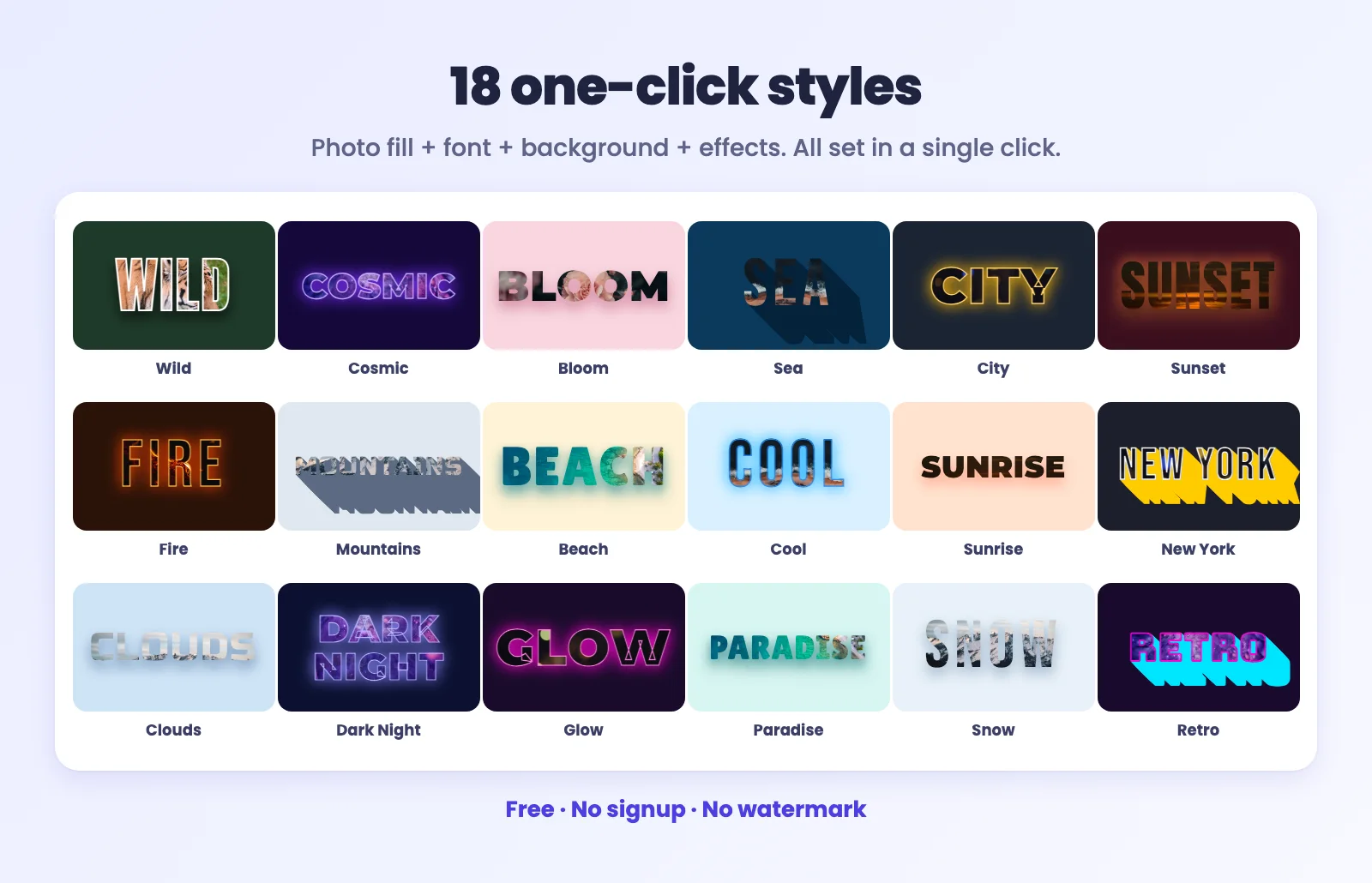
18 one-click styles. pick one, change the word, download. free.

1080 × 1080
Drag to move · handles to resize & rotate
Your Text

Font & Style

Position & Layout
Text Effects (glow, shadow, outline, 3D & more)
Outline / Stroke Border
Drop Shadow
Neon Glow
3D Depth
Bubble Puff
Text Background

How to Use the Image Inside Text Generator

1

Click a Preset

Look at the row of styles above the canvas. Click one that matches your mood. A full design appears on the canvas in one click.

2

Type Your Own Word

Open the Text tab and replace the word with yours. Short words work best. Four to eight letters is a great size.

3

Change the Photo If You Like

Open the Fill tab to upload your own photo or search for a free one. Then slide and zoom the photo until the best part is inside the letters.

4

Add an Effect and Download

Turn on an effect in the Text tab if you want more punch. Then press Download. Pick PNG, JPG, or WebP.

What Is an Image Inside Text Generator?

An image inside text generator turns a word and a photo into one picture. The photo shows through the letters. The rest of the picture is a plain color.

This generator is built to be fast. You do not start from nothing. You click one of 18 presets, and a full design shows up. It already has a bold font, a photo, a background color, and an effect. Then you type your own word.

It is free. It has no sign up and no watermark. And it runs in your browser, so the photos you upload stay on your device.

Image inside text generator with 18 one-click presets, each with a photo fill, font, background, and effects
18 Ready-Made Styles - image inside text generator feature

18 Ready-Made Styles

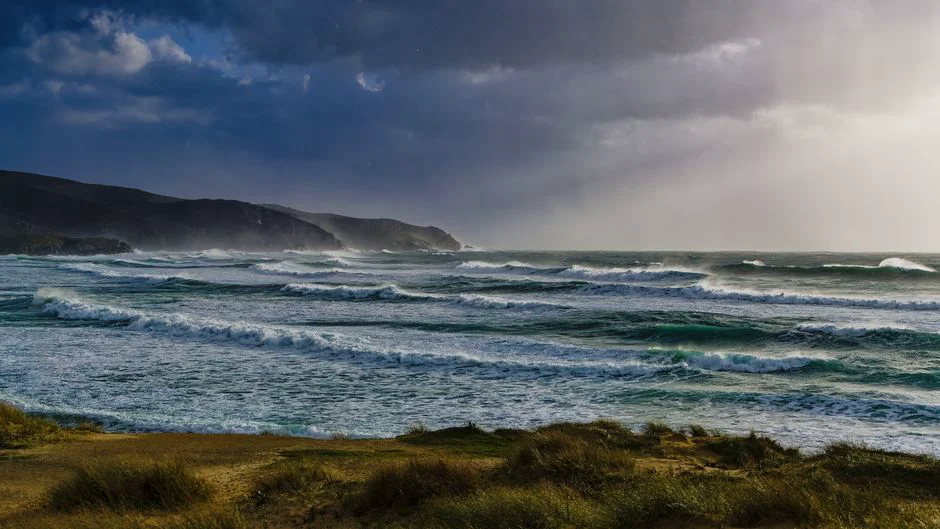
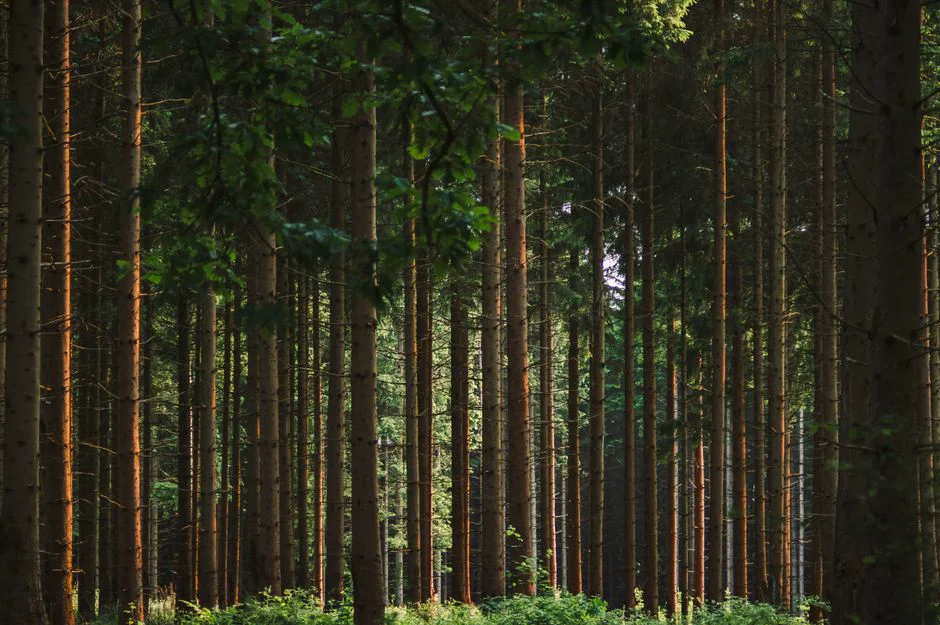
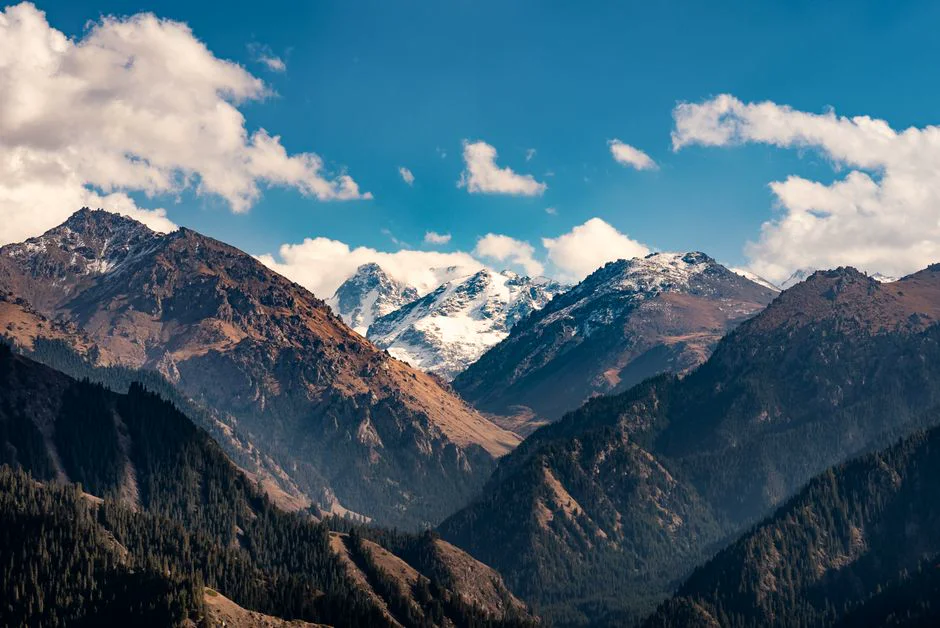
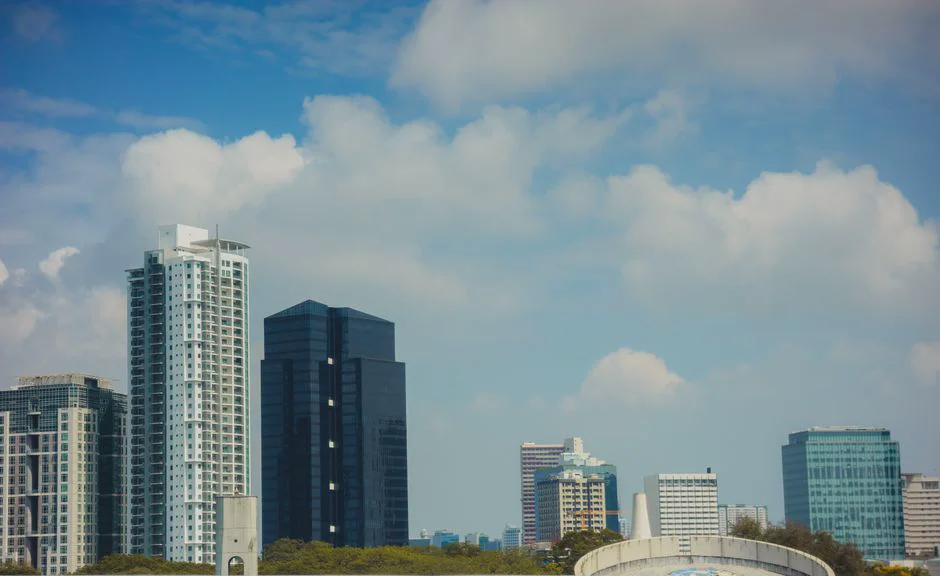
Wild, Cosmic, Bloom, Sea, City, Sunset, Fire, Mountains, Beach, Cool, Sunrise, New York, Clouds, Dark Night, Glow, Paradise, Snow, and Retro. Each one loads a full design in a single click.

Live Preview as You Type - image inside text generator feature

Live Preview as You Type

Every change shows up on the canvas right away. Change a word, a font, or a color and you see the result at once. There is no waiting and no render button.

Six Effects You Can Mix - image inside text generator feature

Six Effects You Can Mix

Neon glow, drop shadow, outline, 3D depth, bubble puff, and a color box behind the text. The glow stays outside the letters, so your photo stays bright.

Move Text and Photo Separately - image inside text generator feature

Move Text and Photo Separately

Choose Text to move the words. Choose Photo inside text to slide the photo inside them. You can also click any text on the canvas to pick it.

Many Texts, Many Sizes - image inside text generator feature

Many Texts, Many Sizes

Add more text layers for more words. Pick a canvas size for Instagram, YouTube, TikTok, Twitter, and more. Or type any size you like.

Free and Private - image inside text generator feature

Free and Private

No account and no watermark. Your uploaded photos never leave your device. Download as PNG, JPG, or WebP.

Frequently asked questions

It is a tool that fills letters with a photo. You type a word, add a photo, and the generator shows the photo through the letters. Then you download the picture.

Yes. It is free to use. There is no account to make, no trial, and no watermark on your download.

No. Photos you upload stay on your device. The tool works in your browser. If you search for a free photo, the tool only fetches the picture you pick.

A preset is a ready-made style. It sets the font, the photo, the background color, and the effects together. This generator has 18, from Wild and Fire to Snow and Retro.

Yes. A preset is only a starting point. You can change the word, the font, the photo, the colors, and the effects. Everything stays editable.

Three things usually help. Use a thicker font. Make the text bigger. Add an outline or pick a background color that is far from the photo colors.

Yes. Open the Fill tab and upload a photo. You can also search for a free photo by typing a word like ocean or city.

Above the canvas, press Photo inside text. Now dragging on the canvas moves the photo inside the letters. Press Text to go back to moving the words.

Press Add Text Layer in the Text tab. Each layer has its own font, size, and effects. Click any word on the canvas to pick it.

For Instagram posts, pick Square. For YouTube, pick YT Thumb. For TikTok and stories, pick TikTok. For a website banner, pick Banner. You can also type your own width and height.

PNG is the best for quality. JPG makes a smaller file. WebP is small and sharp, and it is good for websites.

It is the same tool. The image inside text page explains the effect. This page is about the generator and its presets.

Which Preset Should You Pick?

Each preset has its own mood. Here is a quick guide.

Wild has an animal photo, a green background, and a bold outline. It feels strong and loud.

Fire and Sunset use warm photos with a soft glow. They feel hot and dramatic.

Sea, Beach, and Paradise use water photos. They feel calm and fresh.

Cool and Snow use icy blue tones on light backgrounds. They feel clean and quiet.

City, New York, and Dark Night use dark backgrounds and night photos. They feel modern and bold.

Cosmic, Glow, and Retro use purple tones and neon edges. They feel like the future, or like the eighties.

Bloom, Sunrise, Clouds, and Mountains use soft light backgrounds. They feel gentle and bright.

What Each Effect Does

Effects are in the Text tab. Turn on only what you need. Too many can feel messy.

Neon glow adds a soft light around the letters. It stays outside the letters, so the photo does not wash out. A small glow looks best.

Drop shadow adds a soft shadow under the text. It makes the letters lift off the page.

Outline draws a border around each letter. It helps when the photo is dark in places.

3D depth pulls the letters back into a thick block. You can pick the color, the length, and the direction.

Bubble puff makes the letters look like shiny balloons.

Text background puts a color box behind the text, like a label.

Make Your Design Stand Out

These small steps make a big difference.

Keep it short. One strong word beats a long sentence. Letters get bigger, and the photo gets easier to see.

Go big. Raise the font size until the word almost fills the canvas.

Add space between letters. A little extra space makes each letter clear.

Match the photo to the word. A word like OCEAN should have a water photo. People understand it at once.

Pick a background that is far from the photo. Dark photo? Try a light background. Bright photo? Try a deep, dark color.

Use the move switch. Press Photo inside text and drag until the most colorful part sits in the middle of the word.

Image Inside Text vs. Other Ways to Do It

You can make this effect in Photoshop or Canva. It works. But it takes more steps. You need to place a photo, make a mask, and line everything up.

A generator does those steps for you. You type a word and see the result at once. You can try ten styles in one minute.

If you want words to go behind a person in a photo, that is a different effect. Try text behind image for that. If you want to learn more about this effect, read the image inside text guide.

Where to Use Your Design

Here are some places your finished picture can go.

  • Instagram posts and stories
  • YouTube thumbnails and channel art
  • TikTok covers and phone wallpapers
  • Twitter and website banners
  • Posters, cards, and gifts
  • Team, club, and school graphics
  • Wall art and prints
  • Logos and title cards for videos

More free tools to try

All free, no sign-up — same photo works across every tool

Recent Posts

🔖

Save TextBehindImg

Press Ctrl+D (or ⌘D on Mac) to bookmark and come back anytime, it's free forever.