Transparent text generator

See-through text and clear png backgrounds. free. no signup.

Pick a style to start. You can change everything.
1080 × 1080

Drag the text to move it. Pull the round dots to turn or resize.Drag to move. Pinch with two fingers to resize and turn.

Private by design. Your photos and words stay in your browser. Nothing is uploaded to our servers.

How to Make Transparent Text

1

Pick a Style

Click Watermark, Black text, or Gold foil for a clear PNG. Click Only shadow, Ghost white, Outline only, Glass, or Window text for see-through letters.

2

Type Your Words

Open the Text tab and type. Choose a font and a color. Bold fonts keep their shape best when they are see-through.

3

Set How See-Through It Is

Open the See-through tab. Slide Letter fill to the left to make the letters clearer. Or tap Outline only. Or turn on Cut the text out of a color layer.

4

Download a PNG

Turn on Trim if you want no empty space. Keep PNG selected and press Download. The clear background is saved.

What Is Transparent Text?

People mean two things when they say transparent text. The first is text on a clear background. The picture has no color behind the words, so you can drop it on top of any photo, video, or design. The second is see-through letters. You can look right through them, like a window or a glass sign.

This tool makes both. For the first kind, leave the background empty and download a PNG. For the second kind, lower the fill, show only the outline, keep only the shadow, or cut the words out of a color layer.

It is free, with no sign up and no watermark. Your work stays on your device.
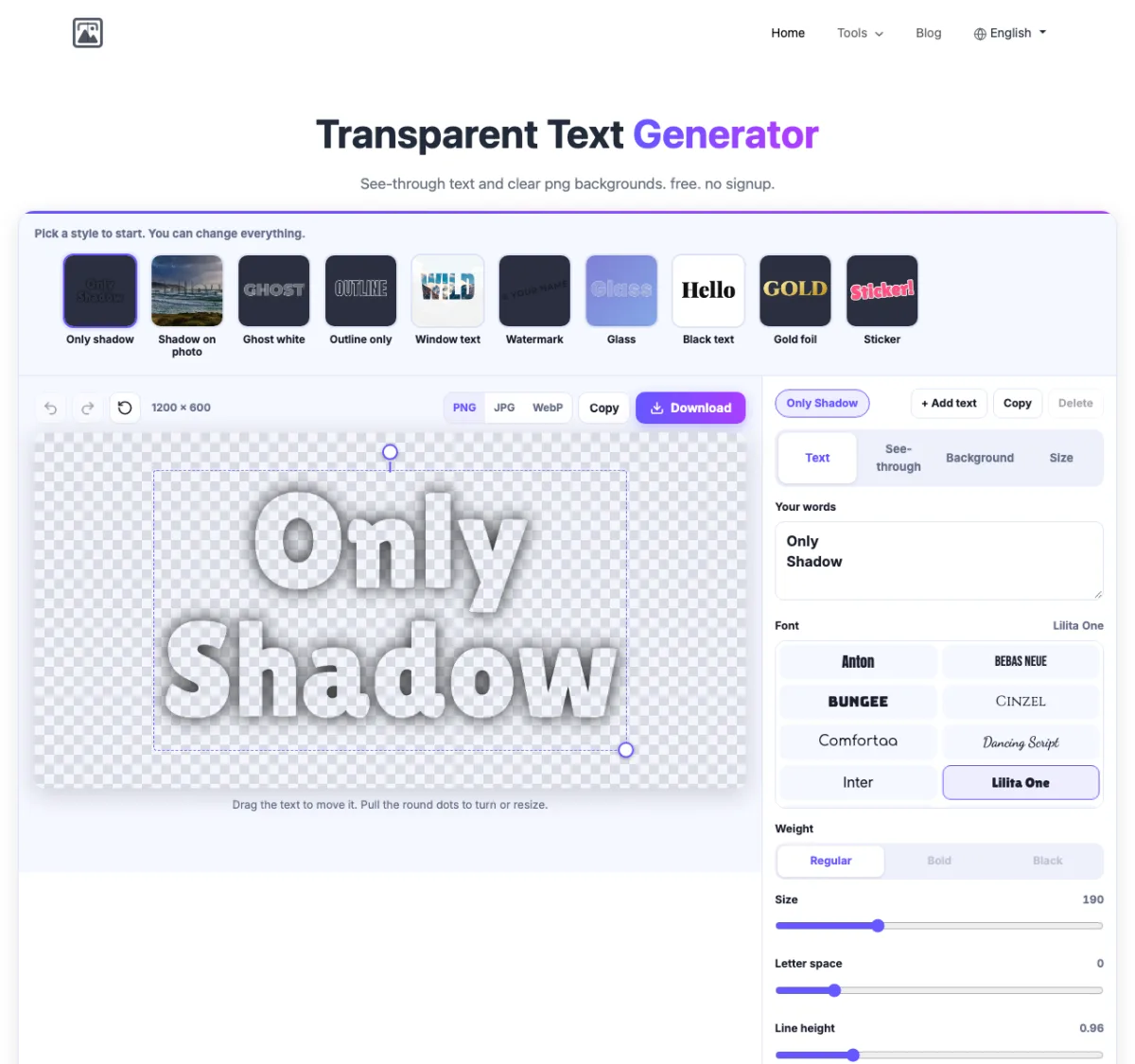
The free transparent text generator showing see-through letters with only a soft shadow, on a clear background
A Clear Background PNG - transparent text generator feature

A Clear Background PNG

Choose None for the background. The picture has no color behind the words. Download it as a PNG or WebP and place it on top of anything.

See-Through Letters - transparent text generator feature

See-Through Letters

Slide the letter fill from solid down to nothing. Keep a thin outline, or show only the shadow, and the words look like glass or a ghost.

Cut-Out Text - transparent text generator feature

Cut-Out Text

Cover your photo with a color layer, then cut the words out of it. Your photo shows through the letters like a window.

Trim and Preview - transparent text generator feature

Trim and Preview

Turn on Trim to remove the empty space around your words. Preview on squares, white, dark, or a photo to see how it will look. The preview is never saved.

10 Ready-Made Styles - transparent text generator feature

10 Ready-Made Styles

Only shadow, Shadow on photo, Ghost white, Outline only, Window text, Watermark, Glass, Black text, Gold foil, and Sticker. Click one and type your own words.

Free and Private - transparent text generator feature

Free and Private

No account. No watermark. Your photos and words stay in your browser and are never uploaded. Download as PNG, JPG, or WebP.

Frequently asked questions

Open the Background tab and choose None. Type your words and pick a font and color. Keep PNG selected and press Download. The file has no background color.

JPG cannot hold a clear background. Only PNG and WebP can. If you pick JPG, the empty area turns white. Choose PNG to keep it clear.

Open the See-through tab and slide Letter fill to the left. At zero, only the outline is left. You can also tap Outline only.

Open the Shadow part of the See-through tab (or the Style tab). Turn on shadow, then turn on Show only the shadow. The letters become see-through and only the soft shadow around them stays. Try the Only shadow style to start.

It is a color layer with your words cut out. You can see the picture underneath through the letters. Turn on Cut the text out of a color layer, and add a photo in the Background tab.

Yes. Try the Watermark style. Make the text a little see-through, tilt it, and download it as a PNG. Then place it on top of your pictures.

That is how computers show a clear area. The squares are only a preview. They are not saved in your download. You can switch the preview to white, dark, or a photo.

It is free. There is no sign up and no watermark. Everything runs in your browser, and nothing is uploaded.

Two Kinds of Transparent Text

Text on a clear background. The letters are solid, but nothing sits behind them. This is what you want for a logo, a sticker, a video title, or a watermark. Save it as a PNG, then place it on any picture or in any design tool.

See-through letters. The letters themselves let the picture show through. This is what you want for a glass effect, a ghost look, or a window cut into a color block.

You can also mix them. Make see-through letters on a clear background, and put the PNG on a photo.

Tips for Clear PNG Text

  • Use a thick, bold font. Thin letters become hard to see when they are see-through.
  • Add a thin outline when you lower the fill. The outline keeps the shape of the word.
  • Check your text on both light and dark previews. White text can vanish on a bright photo.
  • Turn on Trim so your PNG has no extra space around it.
  • For a watermark, use low opacity and a slight tilt. It is harder to crop out.
  • Pick PNG or WebP when you download. Do not pick JPG.

What Can You Do With It?

Put a transparent PNG on a video in your editor. Use it as a sticker in a chat. Lay it over a photo in a slide deck. Add it to a product picture as a watermark. Use it as a title on a thumbnail.

Since the file has no background, it fits any color and any picture. You do not have to cut anything out by hand.

More free tools to try

All free, no sign-up — same photo works across every tool

Recent Posts

🔖

Save TextBehindImg

Press Ctrl+D (or ⌘D on Mac) to bookmark and come back anytime, it's free forever.