Drag the picture to move the photo. The dotted shape shows where you will sit, so keep your text away from it.
A PNG with a clear background looks best.
A little blur and a little darkness help you stand out on camera.
See how you will look in front of this background before you use it in a call.
Drag on the preview to move yourself. The main Download button still saves only the background, which is what Zoom and Teams need.
All sizes are 16:9, the shape of most webcams. JPG makes a smaller file. PNG keeps every detail.
Private by design. Your photos, selfie, and logo stay in your browser. Nothing is uploaded to our servers.
Pick a look and type your name, title, and company. Add your logo for work calls.
Use 1920 × 1080 for the best picture. If Teams says the image is too big, use 1600 × 900 instead.
Choose JPG for a small file and press Download.
Turn on your camera before a meeting, open Effects and avatars or Background filters, click Add new, and pick your file.
Make a Custom Microsoft Teams Background
Microsoft Teams lets you swap your real room for a picture. This tool helps you make that picture yourself.
Add your name, your job title, and your company logo. Choose a photo, a color, or a gradient. Then download it in a size that Teams accepts. Many people find that Teams turns down some large pictures, so we added a smaller Teams-safe size of 1600 by 900.
You can also upload a selfie to see how you will look before your next meeting. It is free, private, and there is no sign up.
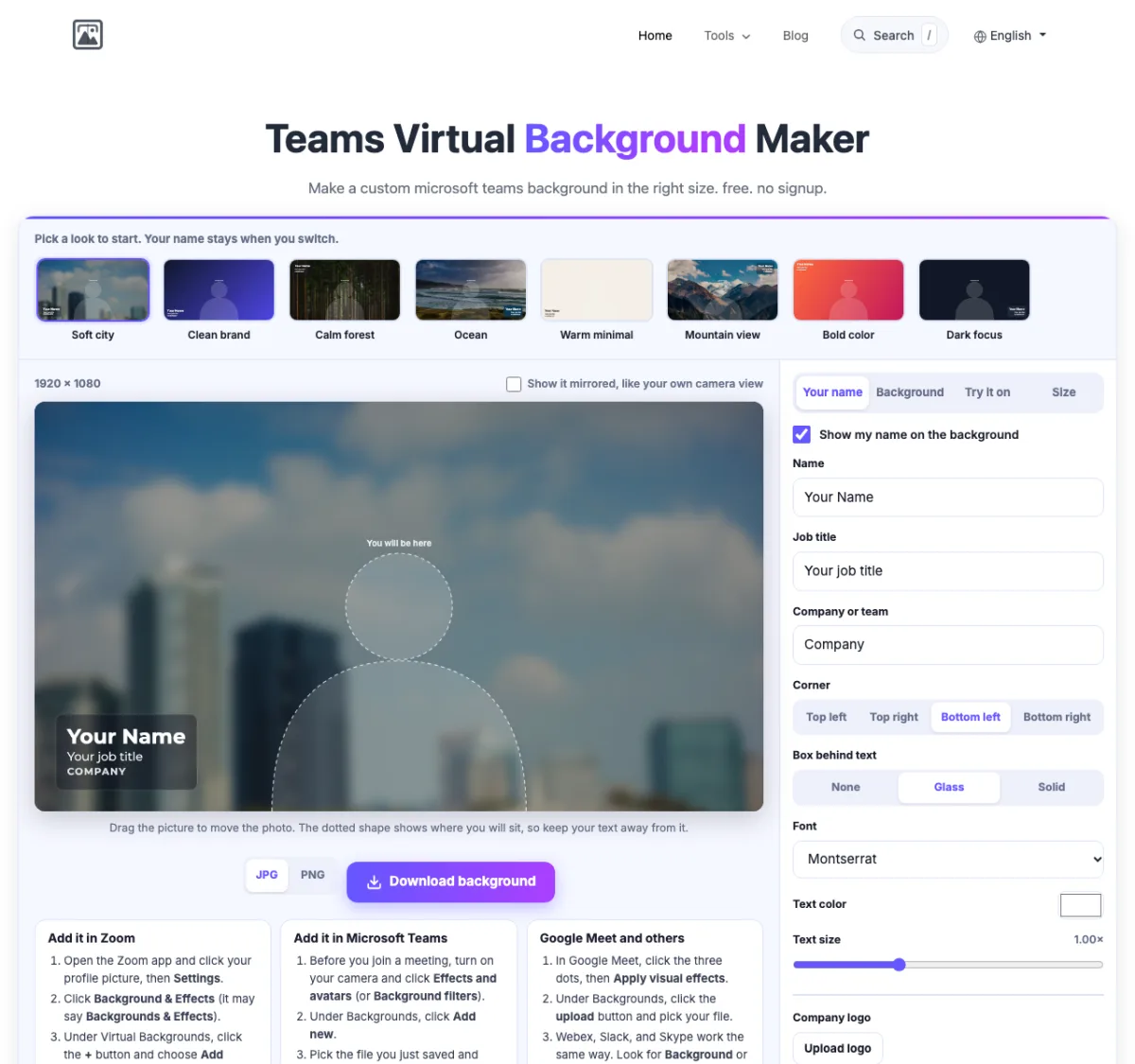
Add your name, job title, and logo, so your team and clients know who you are.
Upload a selfie to see how you look in front of the picture. You can skip this step.
A dotted outline shows where you sit, so your name never sits behind your head.
Use a photo of your office, a free stock photo, a color, or a gradient. Blur it with one slider.
Pick the smaller Teams size if a large image is turned down. Use 1920 by 1080 for the sharpest picture.
No sign up. Your photos and logo stay on your device.
Teams has limits on picture size and file size. These limits have changed over time, and some people see an error with large photos. The easy fix is to use a smaller size and a JPG file.
That is why this tool has a 1600 × 900 option. It keeps the 16:9 shape, so it still fills the screen, but the file is lighter.
Face a window or a lamp. Raise your laptop so the camera is at eye level. Sit in front of a plain wall if you can. With good light, Teams can find your edges better, and the background looks more natural.
All free, no sign-up — same photo works across every tool
Save TextBehindImg
Press Ctrl+D (or ⌘D on Mac) to bookmark and come back anytime, it's free forever.