Zoom virtual background maker

Make your own Zoom background with your name and logo. Free, in HD.

Pick a look to start. Your name stays when you switch.
1920 × 1080

Drag the picture to move the photo. The dotted shape shows where you will sit, so keep your text away from it.

Add it in Zoom

  1. Open the Zoom app and click your profile picture, then Settings.
  2. Click Background & Effects (it may say Backgrounds & Effects).
  3. Under Virtual Backgrounds, click the + button and choose Add Image.
  4. Pick the file you just saved. Done!

Add it in Microsoft Teams

  1. Before you join a meeting, turn on your camera and click Effects and avatars (or Background filters).
  2. Under Backgrounds, click Add new.
  3. Pick the file you just saved and click Apply.
  4. Does Teams say the image is too big? Pick the 1600 × 900 size in the Size tab and download again.

Google Meet and others

  1. In Google Meet, click the three dots, then Apply visual effects.
  2. Under Backgrounds, click the upload button and pick your file.
  3. Webex, Slack, and Skype work the same way. Look for Background or Effects in the video settings.
Corner
Box behind text
Company logo

A PNG with a clear background looks best.

Logo corner

Private by design. Your photos, selfie, and logo stay in your browser. Nothing is uploaded to our servers.

How to Make and Add a Zoom Background

1

Make Your Design

Pick a look, then type your name and job title. Upload a logo or a photo of your own if you like.

2

Download It

Keep the 1920 × 1080 size and press Download. JPG is a small file. PNG keeps every detail.

3

Open Zoom Settings

In the Zoom app, click your profile picture, then Settings, then Background & Effects.

4

Add Your Image

Click the + button, choose Add Image, and pick your file. Your new background is ready.

Make a Custom Zoom Background

A Zoom virtual background hides your real room on a call. Instead of a messy shelf or a busy kitchen, people see a clean picture you chose.

With this maker, you can build your own. Add your name and job title so people know who you are. Add your logo for work calls. Pick a photo, blur it a little, and download it at 1920 by 1080, a size that looks sharp in Zoom.

Then add it to Zoom in under a minute. The steps are right under the download button. It is free, there is no sign up, and your photos stay on your device.
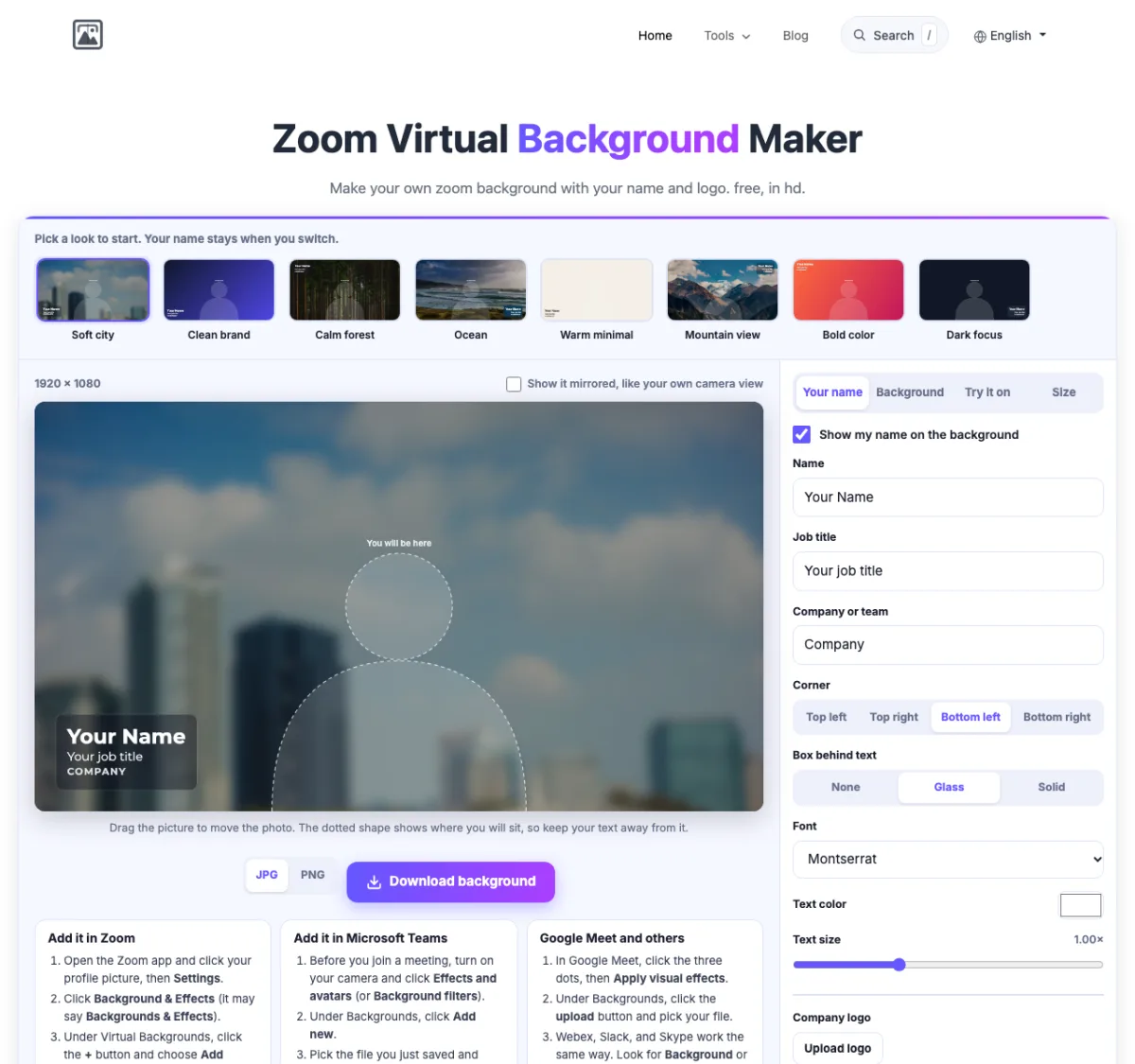
Free zoom virtual background maker tool with a live preview and simple steps
Name Tag for Zoom Calls - zoom virtual feature

Name Tag for Zoom Calls

Add your name, job title, and company, so people know who you are in the call grid.

Preview Without Joining a Call (Optional) - zoom virtual feature

Preview Without Joining a Call (Optional)

Upload a selfie to see how you look in front of the picture. You can skip this step.

Keeps Your Face Clear - zoom virtual feature

Keeps Your Face Clear

A dotted outline shows where you sit. Zoom puts you in front of the picture, so keep text away from it.

Photo, Color, or Gradient - zoom virtual feature

Photo, Color, or Gradient

Use your own photo, a free stock photo, or a plain color. Blur it so it is calm behind you.

HD for Zoom - zoom virtual feature

HD for Zoom

Download 1920 by 1080 for an HD picture. Use 1280 by 720 if your computer is slow.

Free, No Watermark - zoom virtual feature

Free, No Watermark

No sign up. Your photos and logo stay on your device.

Frequently asked questions

1920 by 1080 pixels. It is 16:9, the same shape as most webcams. Zoom suggests at least 1280 by 720 pixels if you are not sure of your camera's shape.

Open the Zoom app. Click your profile picture, then Settings, then Background & Effects. Click the + button and choose Add Image. Pick the file you made.

Zoom shows you a mirror image by default, so text looks flipped to you. Others see it the right way. You can turn off Mirror my video in Zoom's video settings.

Your computer may not meet Zoom's needs for virtual backgrounds, or your work account may have it turned off. Ask your Zoom admin, or update the Zoom app.

Zoom shrinks pictures during a call to save internet speed. Use the 1920 by 1080 size, and turn on HD in Zoom's video settings if you can.

No. It is a free tool made by TextBehindImg. It makes a normal image file that works in Zoom.

Yes. No sign up and no watermark. Your files never leave your device.

Ideas for Zoom Backgrounds

  • Job interview: a calm, blurred office with just your name. Nothing else.
  • Sales call: your logo in a top corner and your name and title at the bottom.
  • Teacher or tutor: a bookshelf photo with your name, so students learn it fast.
  • Webinar host: company colors as a gradient with the event name in the title line.
  • Fun team call: a beach or forest photo with a small, friendly name tag.

Make Your Name Easy to Read

Your head and shoulders cover the middle and the bottom center of the picture. That is why the dotted shape is there. Put your name in a corner, not in the middle.

Turn on the Glass box if your photo is busy. It puts a soft dark box behind your name, so the text stays clear on any picture.

Keep it short. A name, a job title, and a company is enough. Long text gets too small to read on a call.

Look Better on Zoom

Sit in front of a plain wall if you can. Face a window or a lamp so light falls on your face. Put your camera at eye level. These three things make the virtual background edges cleaner and make you look sharper.

More free tools to try

All free, no sign-up — same photo works across every tool

Recent Posts

🔖

Save TextBehindImg

Press Ctrl+D (or ⌘D on Mac) to bookmark and come back anytime, it's free forever.